IPTV on a Firestick: install a player and sign in
Firestick IPTV setup in one sitting: two one-time switches, one Downloader code for the player you choose, and the login details from our WhatsApp message.
Short answer
Install the free Downloader app, switch on Developer Options once, then type your player's code in Downloader. For IBO Player that code is 1171959: photograph the Device ID and Key it displays, message the picture to us and we switch it on. Allow about 10 minutes.
- Works on
- Fire OS sticks (4K Max included); Vega OS sticks are not supported
- Time to set up
- About 10 minutes
- Difficulty
- Easy
- Apps in this guide
- IBO Player, TiviMate, ELK Player, IPTV Smarters
- You need
- Your WhatsApp login details and a Wi-Fi or Ethernet connection
No login yet? Compare the plans first. Unsure your connection copes with 4K? Run the IPTV speed test on the same network.
How to download IPTV on a Firestick: the short version
Four moves cover every Firestick IPTV setup, whichever app you pick in the tabs above:
- Add the free Downloader app from the Amazon Appstore.
- Switch on Developer Options and let Downloader install apps.
- Enter the player’s code in Downloader: 1171959 for IBO Player, 272483 for TiviMate, 82854 for ELK Player, or the developer’s full address for IPTV Smarters.
- Open the player and add our login, or WhatsApp us a photo of its codes.
Before you begin, have the stick online by Wi-Fi or an Ethernet adapter, the remote to hand and our WhatsApp message with the login open on your phone. 4K needs 25 Mbps or more; Full HD and HD manage with less. Not ordered yet? The plans and prices page shows every option.
Check your Fire TV model first
Vega OS, Amazon’s newer system, refuses Downloader and anything not sold in its own store, so these steps fail on a Vega OS stick. To find out which system yours has, go to Settings › My Fire TV › About, or Settings › Device › Fire TV on newer menus, and read the software line. If it names Fire OS, carry on. Vega OS sticks instead show a plain OS version whose first digit is 1 or 2.
| Model | Works with this guide | How to tell |
|---|---|---|
| Fire TV Stick 4K Max | Yes | Fire OS, plays 4K |
| Older Fire TV Sticks and Cubes | Yes | About shows Fire OS |
| Fire TV Stick 4K Select | No | Vega OS, store apps only |
| Fire TV Stick HD (2026) | No | Vega OS (Wi-Fi 6, curved corners, Fire TV text on the body) |
| Fire TV Stick 4K 3rd Gen (2026) | No | Vega OS; white box, "4K" by the HDMI plug |
| Fire TV smart TVs | Check About | Yes on Fire OS, no on Vega OS |
Any Fire OS model is enough for a Full HD set; for a 4K set, the Fire TV Stick 4K Max shows the 4K streams at full resolution. With a Vega OS stick, use a Google TV device or an Android TV box instead, or ask us on WhatsApp which device to use before ordering.
Two one-time steps before any app
Amazon only accepts apps from outside its store after you give permission once. Allow about three minutes. You do this once per stick: adding another player or updating one later goes straight to the code.
1. Install the Downloader app
On the home screen, go to Find, then Search, and type Downloader. Pick the result with the orange icon and choose Get or Download. This free app from the Amazon Appstore is a simple browser, and it is where you type each code in this guide. Leave it installed for future updates.
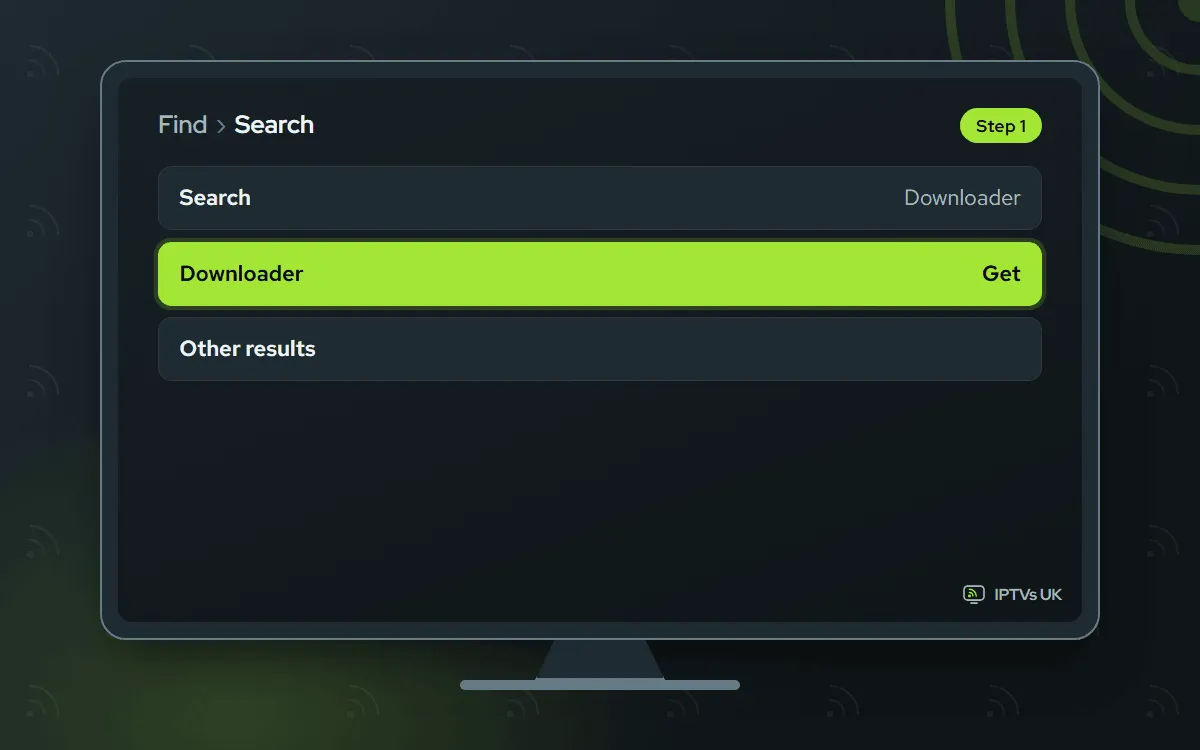
2. Turn on Developer Options and allow Downloader
Go to Settings, My Fire TV, About, then highlight your Fire TV’s name at the top and click the centre button on the remote 7 times in a row, until a message tells you Developer Options is enabled. Return to My Fire TV, where Developer Options now appears. Inside it, turn on Apps from Unknown Sources. If your Fire OS is newer, you will see Install unknown apps there instead: open it and set Downloader to ON.
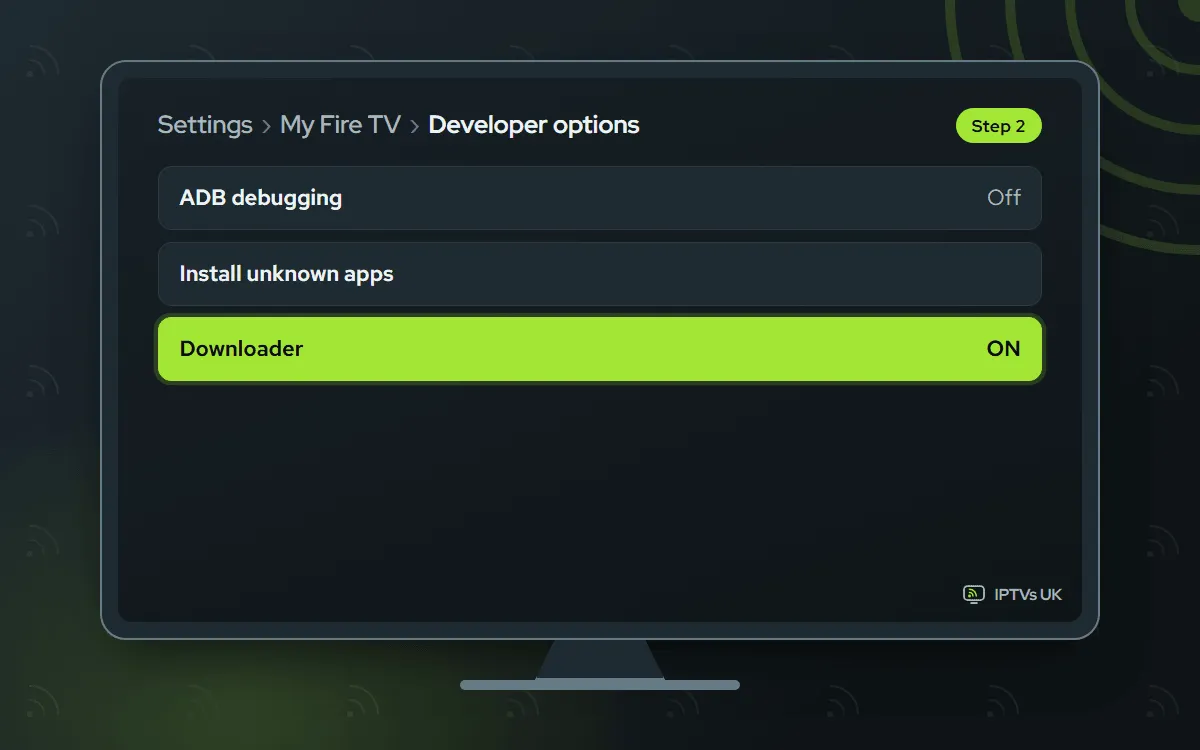
Recent Fire OS versions expect this exact order: Downloader first, then Developer Options, then the permission for Downloader.
Install a player on your Firestick and sign in
Every app here goes on through Downloader, so finish the two one-time steps first. Then choose a tab. IBO Player sits first: a single photo is enough for us to switch it on.
IBO Player Paid app, we activate it
You send us the Device ID and Key. 7 days free, then a yearly or lifetime licence for each device, bought from its developer
-
Enter code 1171959 in Downloader
Downloader is where the code goes. Select the address field, enter
1171959and press Go, which opens the genuine IBO Player installer hosted on iboplayer.com. Fire OS asks you to confirm: pick Install, then Done. When Downloader offers to delete the installer, accept, as it is no longer needed.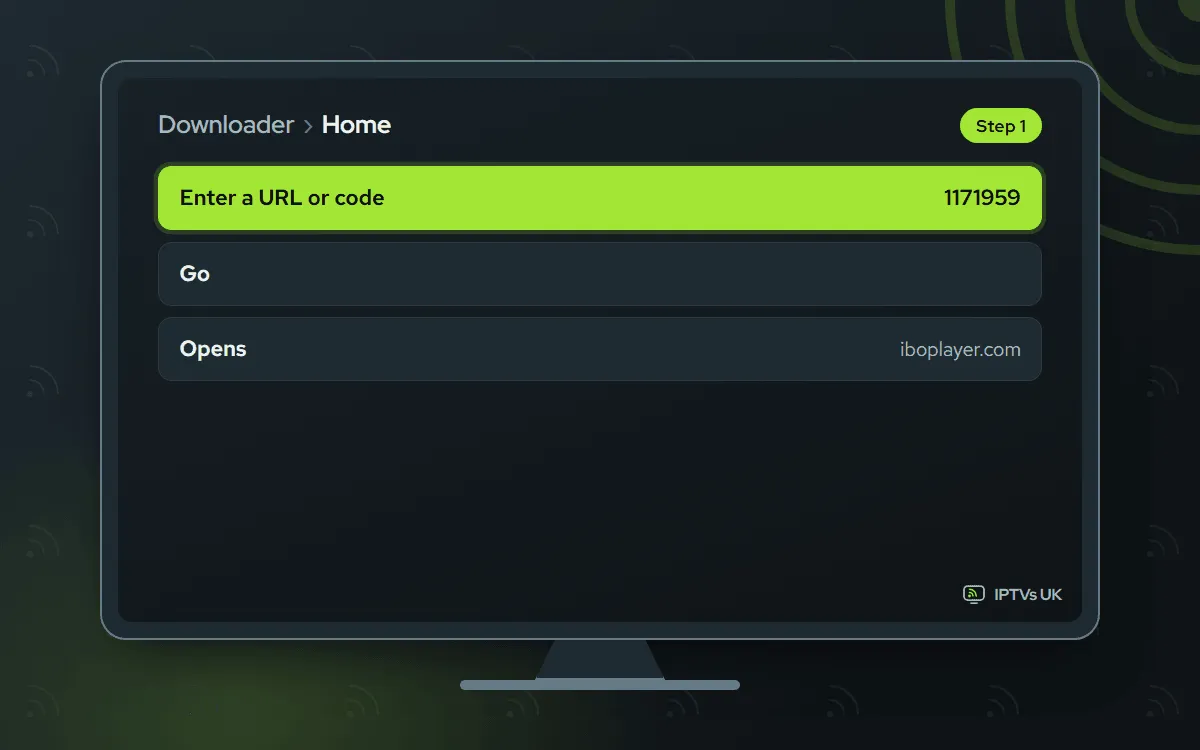
-
Photograph the Device ID and Key
Start IBO Player. Two values fill its welcome screen: a Device ID (a few versions say MAC address) and a Device Key. Photograph the TV with your phone so both come out sharp. If you write them down instead, check each character twice, because a single slip blocks the activation.
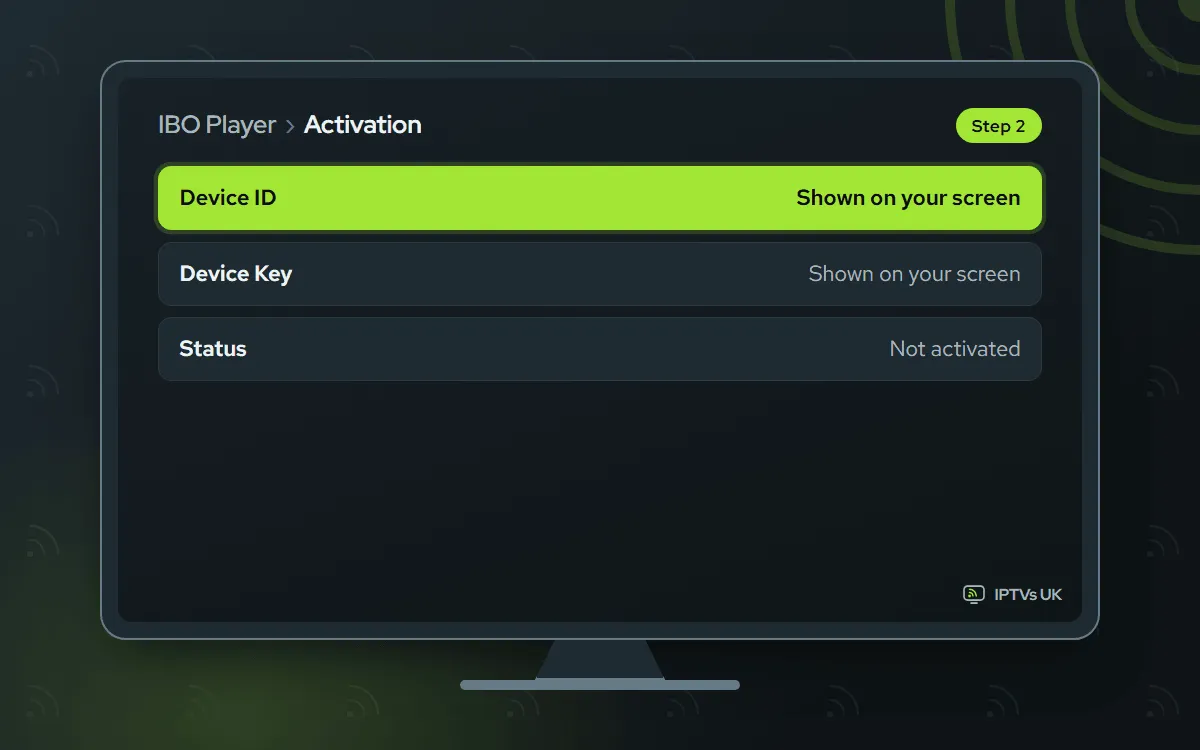
-
Send the photo on WhatsApp
Open WhatsApp, send us that photo and add a line saying IBO Player. We tie both values to your plan from our side and let you know, usually within minutes. Once the 7 free days run out, any licence is bought from the app's developer; we never take a fee for it.

-
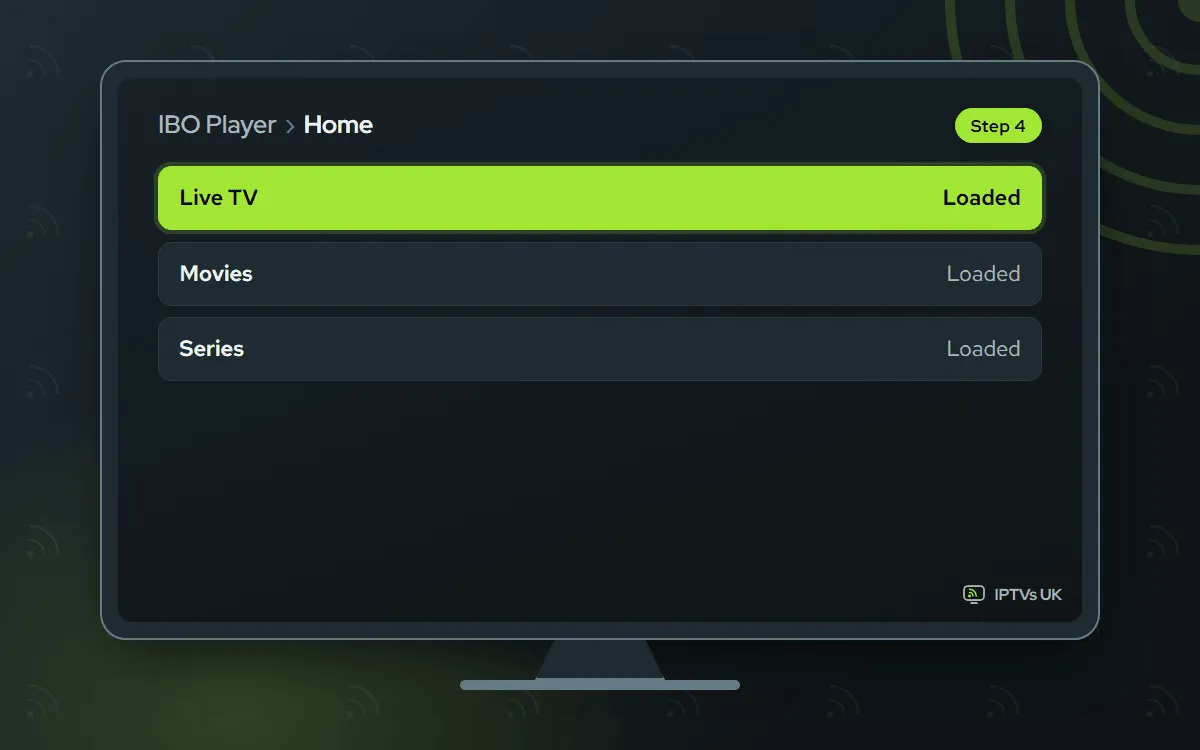
Restart IBO Player and start watching
When our reply arrives, leave IBO Player by pressing Back until it shuts, then launch it again. Live TV, films and series each get their own section. Nothing there after sixty seconds? Power-cycle the stick and try the app once more.
TiviMate Free app, you type the login
You enter the Xtream Codes login yourself. The app is free; Premium is an optional extra sold by its developer
-
Enter code 272483 in Downloader
The first time Downloader opens it asks for storage access: allow it. Stay on the Home tab, move to the address field and enter
272483using the remote or the keyboard on screen, then press Go. The file is fetched from files.tivimate.com, which belongs to the developer. The address tivimate.com/download leads to that same file if you prefer a name to a number.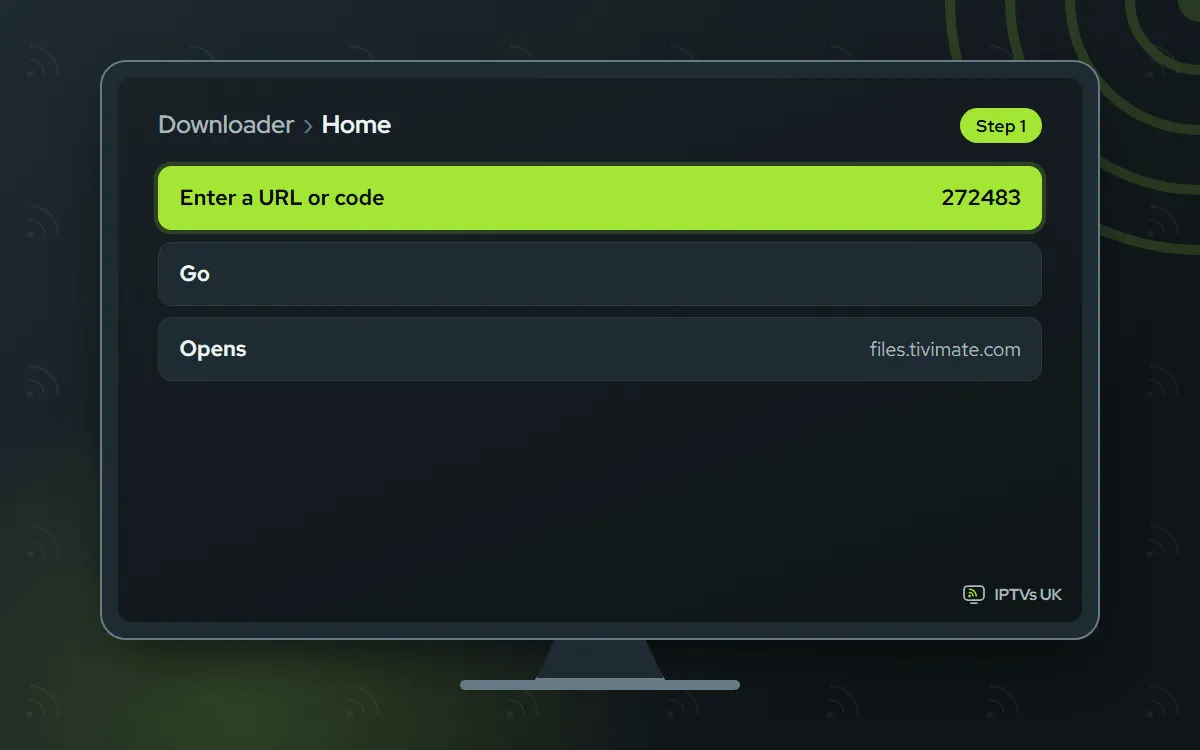
-
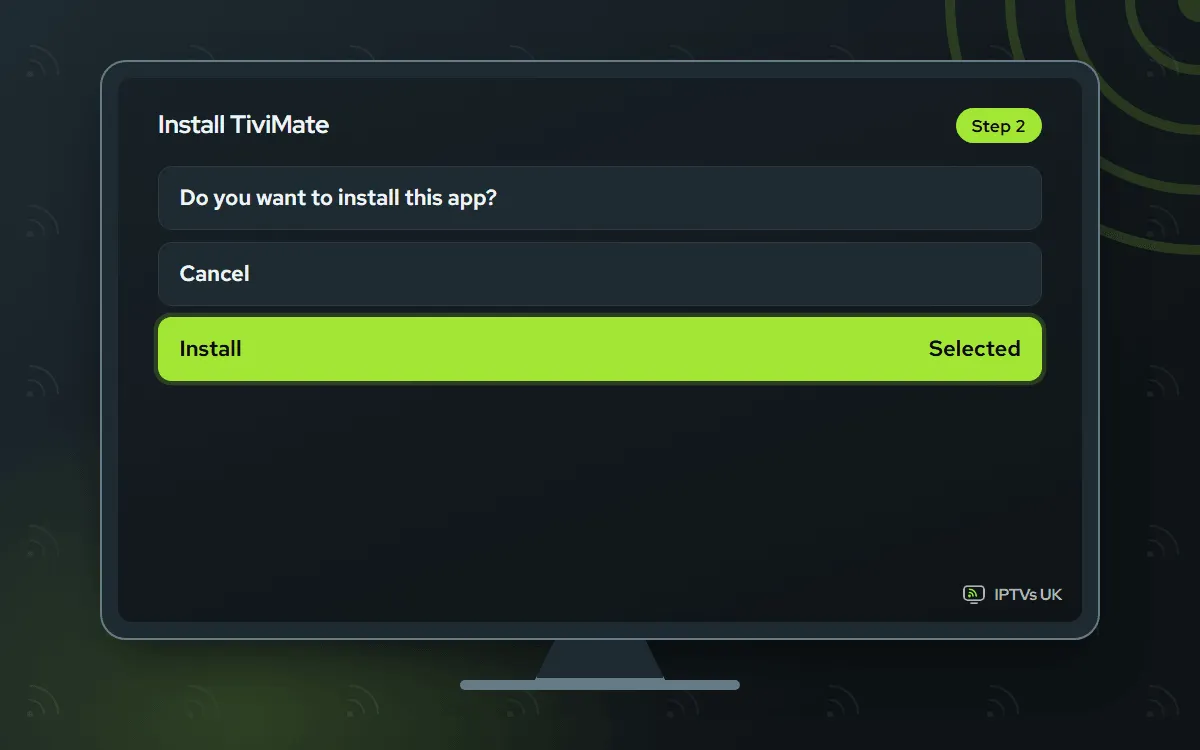
Install TiviMate and tidy up
A Fire OS screen appears once the download is complete. Press Install, give it a few seconds, and pick Done, not Open. Downloader then asks whether to remove the installer; confirm Delete both times, as the app is already in place. Pin TiviMate near the start of your apps row for quicker access.
-
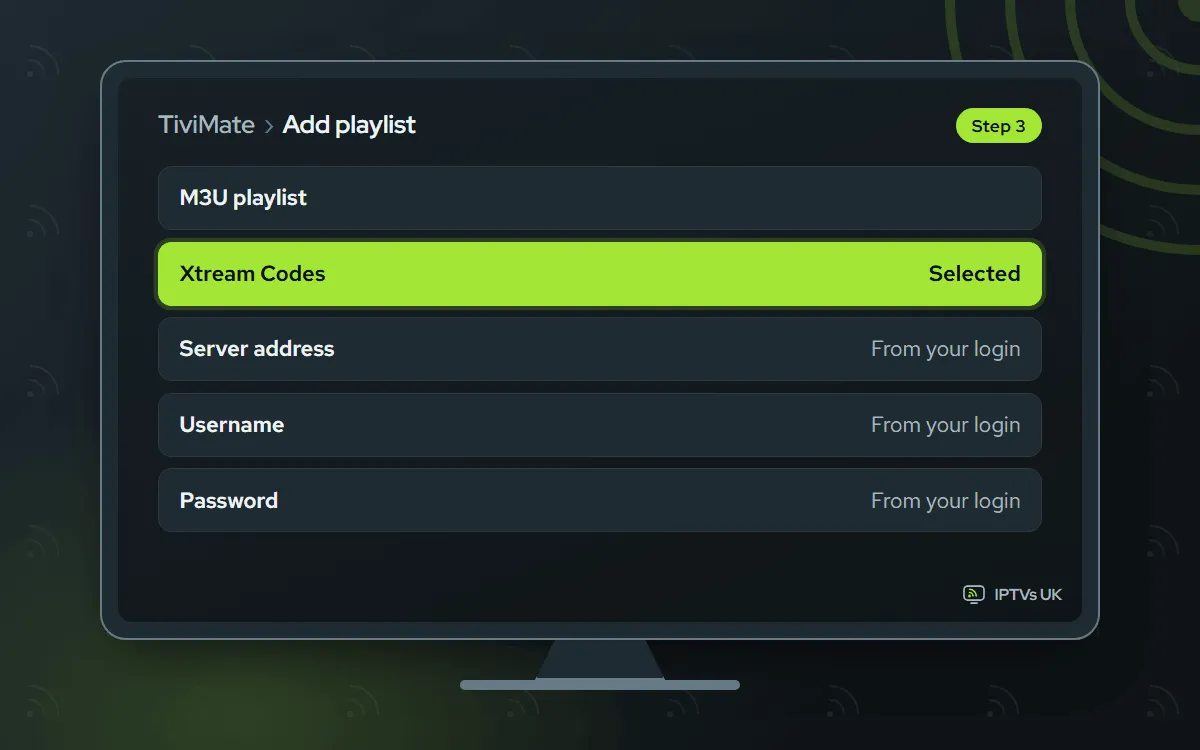
Add the playlist with Xtream Codes
Launch TiviMate, select Add playlist and pick Xtream Codes. Copy the three fields from our WhatsApp message (server URL, username, password) character for character, leaving no space after them, and press Next. The app tests the login and reports how many channels and films it found. Rather use one link? Choose M3U playlist and drop in the M3U link.
-
Name it and wait for the guide
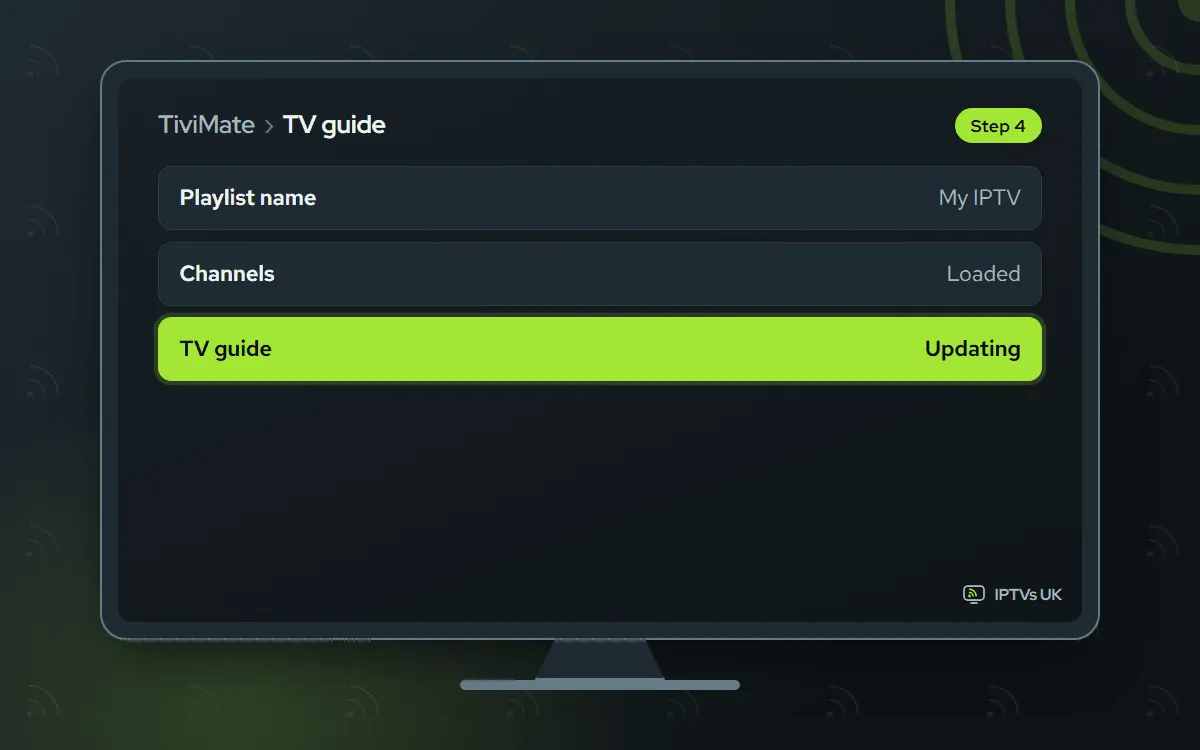
Give the playlist a name you will recognise and press Done. Channels show up straight away, while the TV guide takes a minute or two to complete. Start any channel to make sure it plays.
ELK Player Paid app, we activate it
You send us a photo of its codes. 14 days free, then a single fee for each device, paid to its developer
-
Enter code 82854 in Downloader
Back in Downloader, go to the address field, enter
82854and select Go. This pulls the genuine ELK Player installer from elkplayer.com. Press Install on the Fire OS screen and then Done. Say yes when Downloader offers to delete the installer, which keeps the small storage free.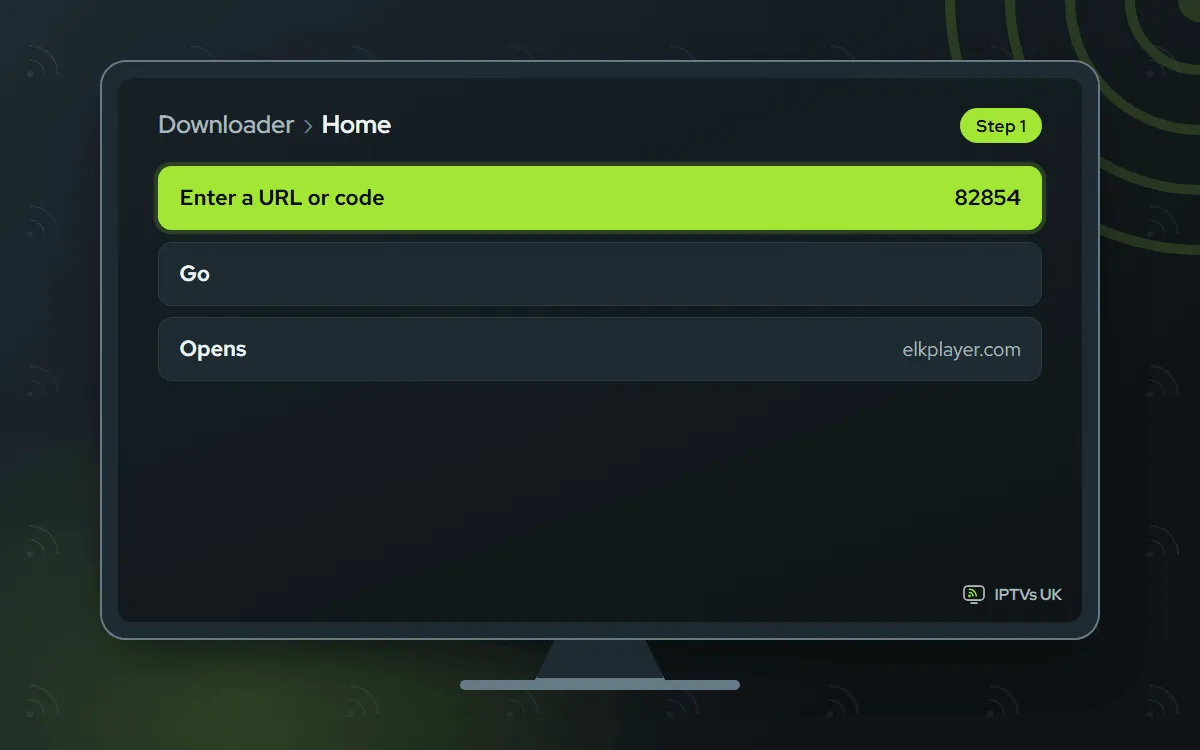
-
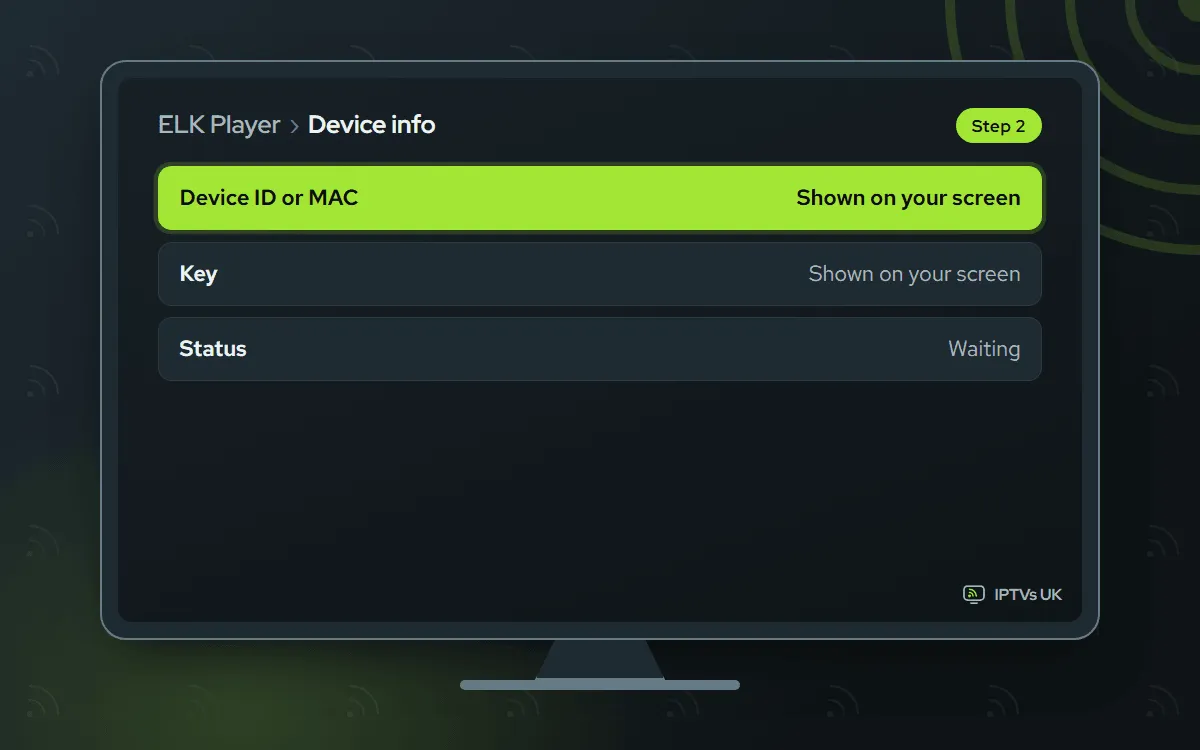
Record the codes ELK Player shows
Launch ELK Player from your apps. Its opening screen displays a Device ID or MAC address alongside a Key. Take a photo where every character is readable, or note both on paper, taking care over look-alike characters such as 0 and O.
-
Send the details on WhatsApp
Start a WhatsApp chat with us, add the photo and say it is for ELK Player. We enter the details on our side and message you as soon as it is live, normally within minutes. The developer charges a one-time fee when the 14 free days are over; that payment goes to them, not to IPTVs UK.

-
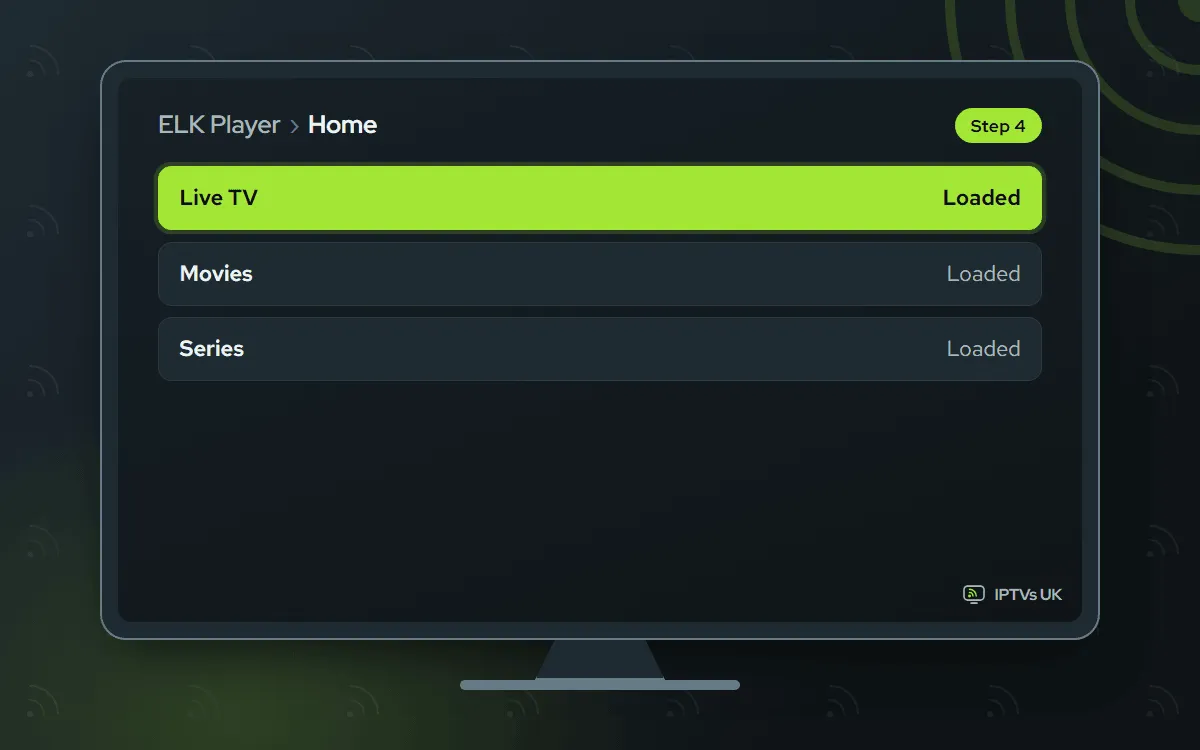
Restart ELK Player and watch
Once we reply, close ELK Player fully and launch it again so it loads the playlist. Live channels, films and series sit in separate sections. Still blank after a minute? Under Manage Installed Applications, wipe the app's cache, then open it again.
IPTV Smarters Free app, you type the login
You enter the Xtream Codes login yourself. A free app from its developer
-
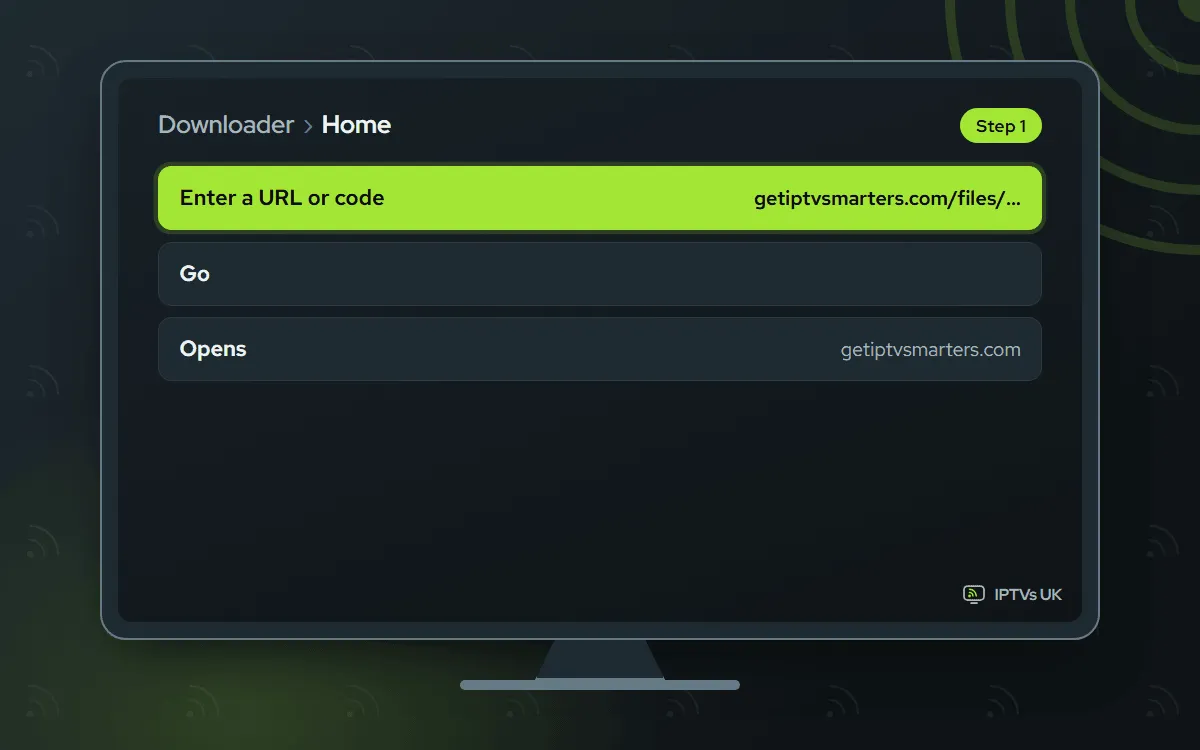
Type the official address in Downloader
In Downloader, enter the full address getiptvsmarters.com/files/android/iptv-smarters-5.0.apk in the address field and press Go. The file is served by the developer's own site, getiptvsmarters.com. Confirm Install when Fire OS asks, press Done, and let Downloader remove the installer.
-
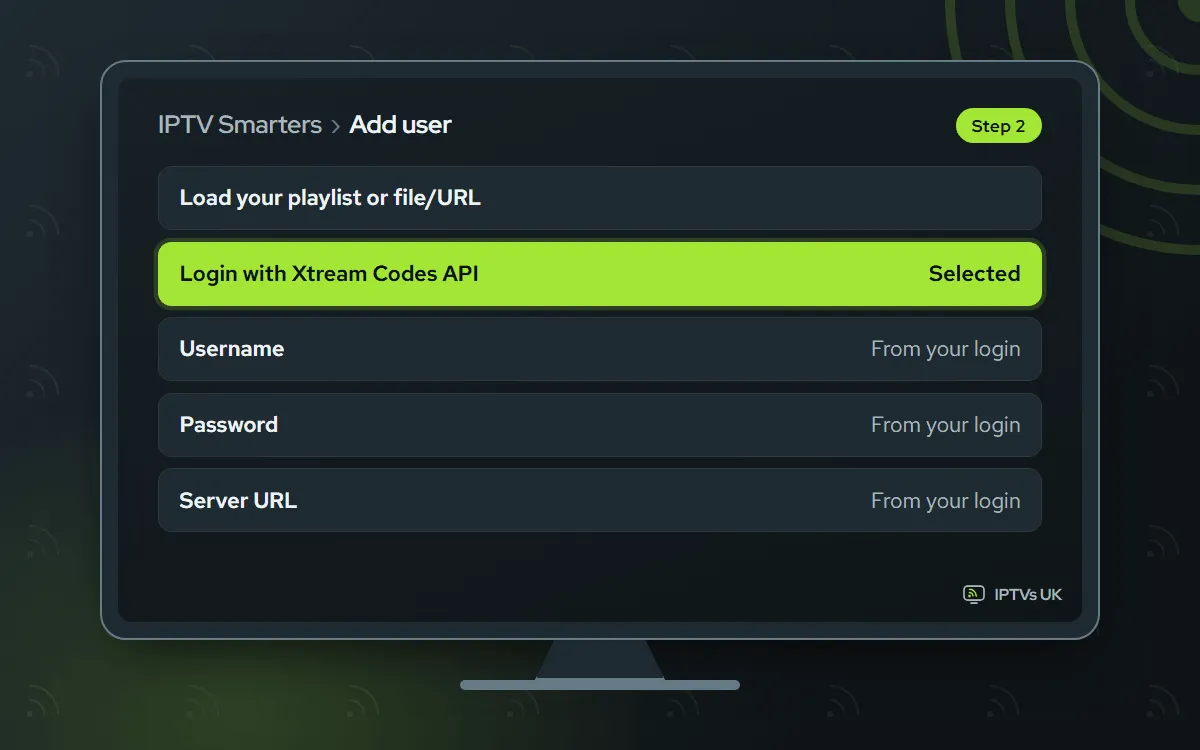
Pick Login with Xtream Codes API
On first launch, IPTV Smarters shows its terms: accept them, then select Login with Xtream Codes API. Type any profile name, followed by the username, password and server URL we sent. Copy the URL in full, http:// and port number included, because one missing character is what breaks most logins.
-
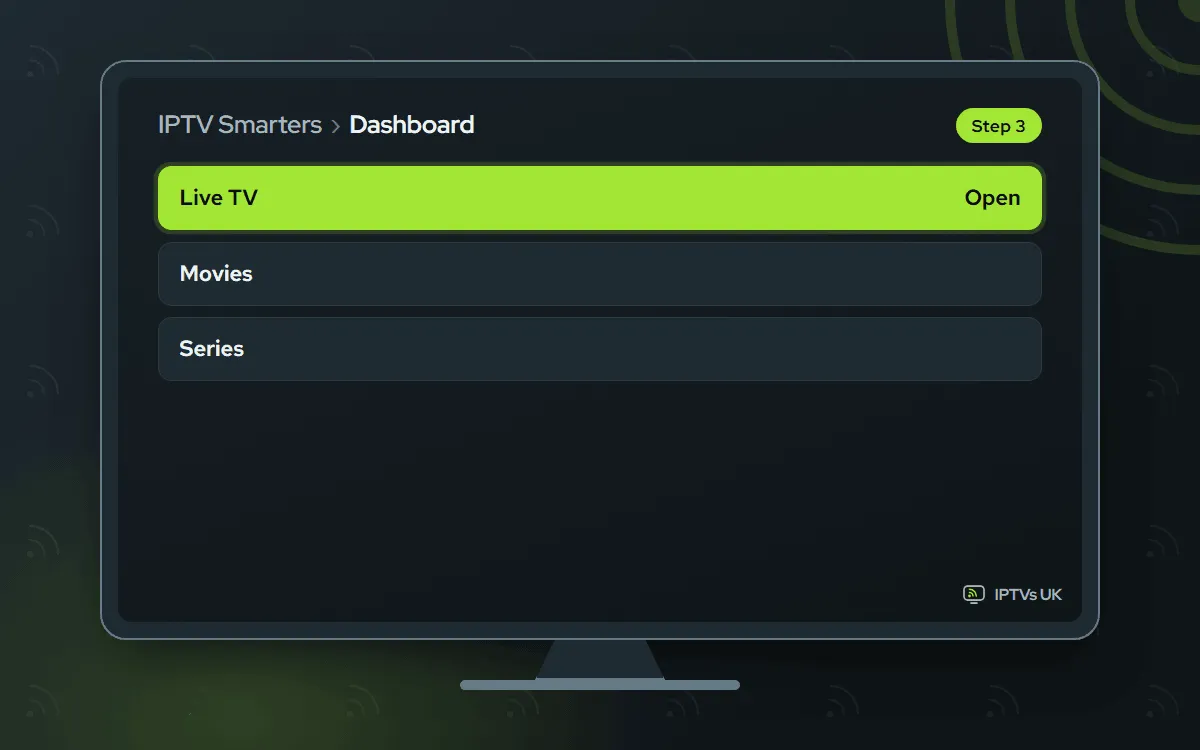
Add the user and open Live TV
Press Add user. The app downloads your channel list, films and series; on a Fire TV Stick this may take up to a minute. Go to Live TV, open a category and play any channel. Your profile is remembered, so the dashboard opens directly from now on.
Which Firestick IPTV app suits you?
All four apps play the same channels from the same login, so the choice comes down to how you like to work.
| App | How you sign in | Cost | Good for |
|---|---|---|---|
| IBO Player | We activate it from a photo | 7 days free, then a licence for each device, bought from its developer | Anyone who would rather not type a password with the remote |
| TiviMate | You type the Xtream Codes login | Free; optional Premium sold by its developer | A remote-friendly layout and a clear guide grid |
| ELK Player | We activate it from a photo | 14 days free, then a single fee for each device, paid to its developer | A different look with the same hands-off setup |
| IPTV Smarters | You type the Xtream Codes login | Free | A simple sign-in screen at no cost |
If you are unsure, start with IBO Player. You can add a second app later with the same login, and nothing you install now ties you in.
Install only from the official source
Every code points to a single file published by the app’s maker: 1171959 from iboplayer.com, 272483 from files.tivimate.com and 82854 from elkplayer.com. IPTV Smarters has no working short code, because an older one that still circulates leads to a web address that has since shut down. A genuine install never asks for money or card details inside Downloader.
Picture and speed settings
Adjust one thing at a time, then judge it on several channels, since some sources simply look better than others.
- Display: under Settings, Display and Sounds, Display, keep Video Resolution on Auto, and if your model has Match Original Frame Rate, switch it on.
- Buffer and decoder: if channels stutter in the first seconds, raise the buffer one step in the player’s playback settings; if one channel shows blocky patches, swap the decoder between hardware and software.
- Stream version: you can pick 4K, Full HD or HD from our service. When the household network is busy, the lower two hold steadier than 4K.
- Housekeeping: restart the stick weekly (Settings, My Fire TV, Restart), empty the player’s cache now and then, which keeps your playlist, under Settings, Applications, Manage Installed Applications, and stop the autoplaying previews on the home screen (Settings, Preferences, Featured Content).
Firestick IPTV troubleshooting
Developer Options does not appear. It only shows after 7 quick clicks on the device name under About. If it never does, check the software version: Vega OS models have no such menu.
Downloader will not install the file. Make sure Apps from Unknown Sources, or Install unknown apps for Downloader, is on. Then enter the code again slowly and press Go.
The picture keeps buffering. Pick a lower quality (Full HD or HD) for that channel, restart the router or connect the stick by Ethernet. A VPN can slow streams too, so turn it off briefly as a test.
Channels will not load in TiviMate or IPTV Smarters. Compare each field with our message. Capitals matter, and a trailing space or a missing port number stops the login.
IBO Player or ELK Player stays empty. Check that we have replied on WhatsApp to say activation is done, then quit the app completely and relaunch it. Still blank? Resend the photo of both codes and we redo it straight away.
Other screens and plans
Your login works on every other screen in the house as well. The Android TV guide covers boxes and NVIDIA SHIELD, the Google TV guide covers Chromecast with Google TV, and the Samsung and LG guide covers TVs that need no stick at all. The setup hub lists every device, and the plans and prices show how to add a second screen.
