How to play IPTV on an iPhone or iPad
Your iPhone or iPad already has everything it needs except a player app. Pick one below, sign it in once, and the channels, films and series open with a tap.
Short answer
Download one of four players from the App Store and sign it in once. IBO Player and ELK Player show a Device ID and Key: capture that screen, and once our WhatsApp chat has the picture, activation is done on our side. Smarters Player Lite and UHF take the details we send on WhatsApp, and most people are watching within about 5 minutes.
- Works on
- iPhone and iPad (iOS and iPadOS)
- Setup time
- About 5 minutes
- Difficulty
- Easy
- Apps in this guide
- IBO Player, ELK Player, UHF and Smarters Player Lite
- You need
- The login we send on WhatsApp
No login yet? Compare the plans first. Unsure your connection copes with 4K? Run the IPTV speed test on the same network.
Install a player and sign in
Choose a tab. IBO Player leads the list since activation is our job, not yours; the free apps simply take the login you paste in.
IBO Player Paid app, we activate it
You screenshot the Device ID and Key for us. 7 days free, then a yearly or lifetime licence for each device, paid to the app's developer as an in-app purchase
-
Get IBO Player from the App Store
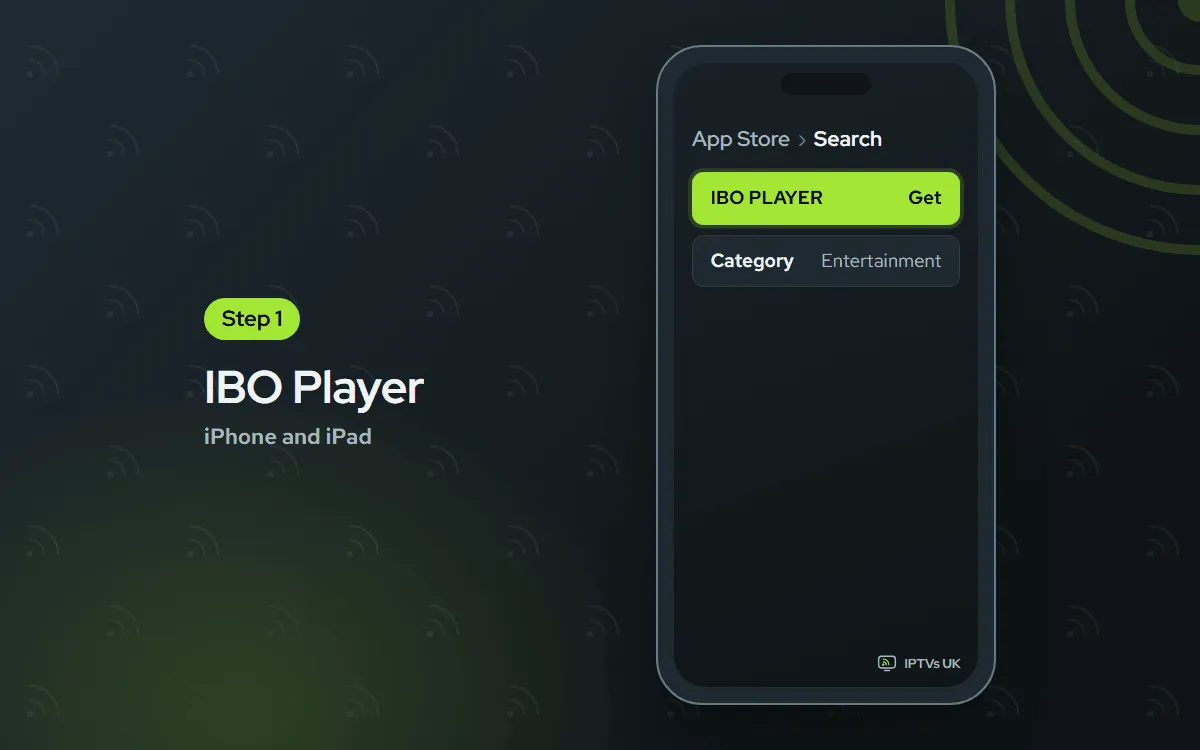
On your iPhone or iPad, open IBO Player on the App Store. The listing is called IBO PLAYER. Tap Get. Copycat IPTV apps sit in the store too, so use this exact listing.
-
Screenshot the Device ID and Key
Open the app. A Device ID and a Key appear on the first screen. To capture it, hold the side button and tap volume up at the same moment.

-
Send the screenshot on WhatsApp
Share the picture with us in a WhatsApp chat, with a note saying it is IBO Player. Once the app is linked to your plan we reply, normally within minutes.

-
Restart IBO Player and watch
Close IBO Player from the app switcher, then start it once more. Your channels show up. If the list is still blank, wait about a minute and launch IBO Player again.

ELK Player Paid app, we activate it
You screenshot the Device ID and Key for us. 14 days free, then a one-time fee for each device, paid to the app's developer
-
Find ELK Player in the App Store
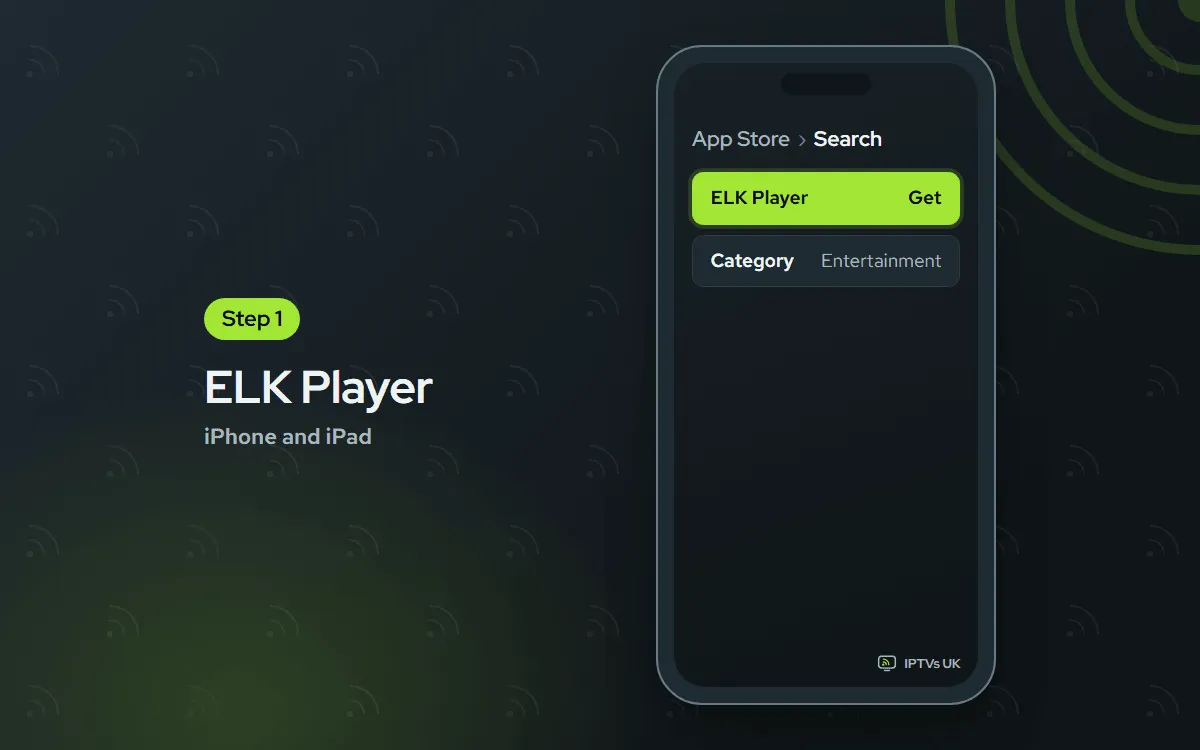
Open the App Store, type ELK Player in the search box and tap Get.
-
Capture the Device ID and Key
Start ELK Player. You will see a Device ID and a Key on its opening screen. Save a screenshot of it.

-
Message it to us on WhatsApp
Send that screenshot over WhatsApp, noting that it came from ELK Player. We turn it on for your plan and message you once it works.

-
Reopen ELK Player and pick a channel
Swipe ELK Player off the app switcher, start it again and choose something to watch.

Smarters Player Lite Free app, you sign in
You paste the Xtream Codes login yourself. Free. It is the App Store version of IPTV Smarters
-
Install Smarters Player Lite
Open the Smarters Player Lite App Store page, or type the name into the store search, then tap Get.

-
Pick Login with Xtream Codes API
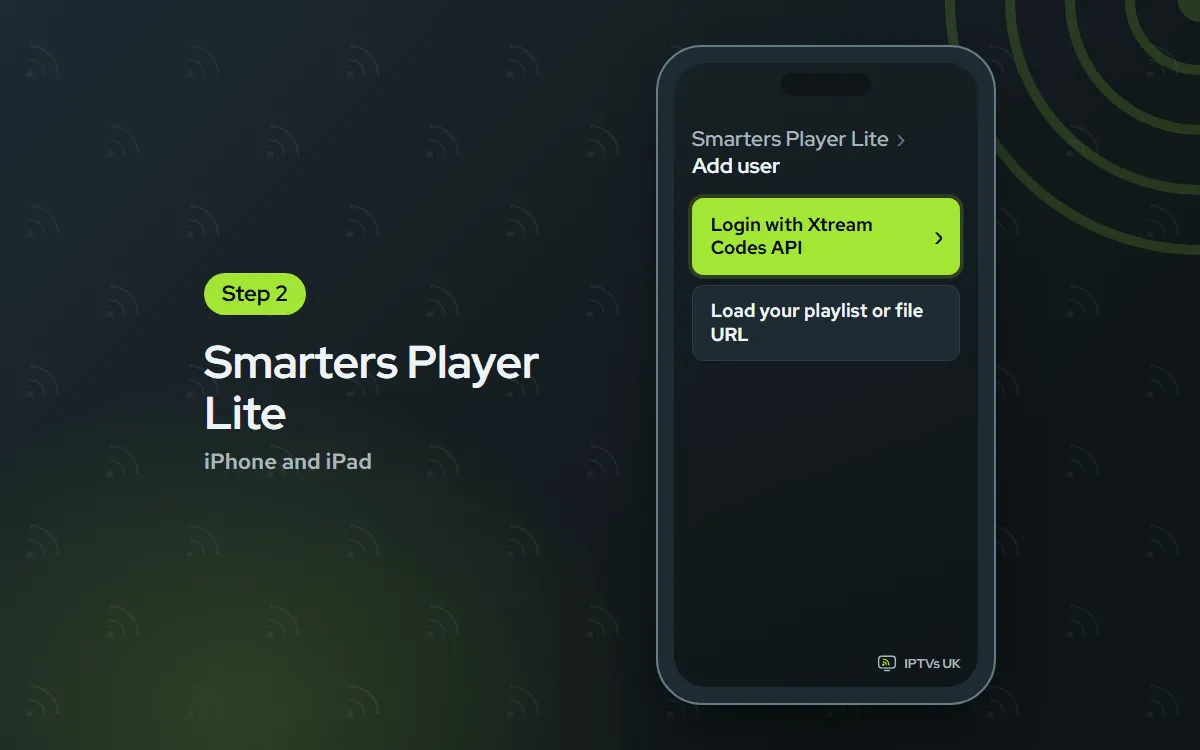
Start the app and accept its terms. From the list of sign-in types, choose Login with Xtream Codes API.
-
Paste your login and tap Add user
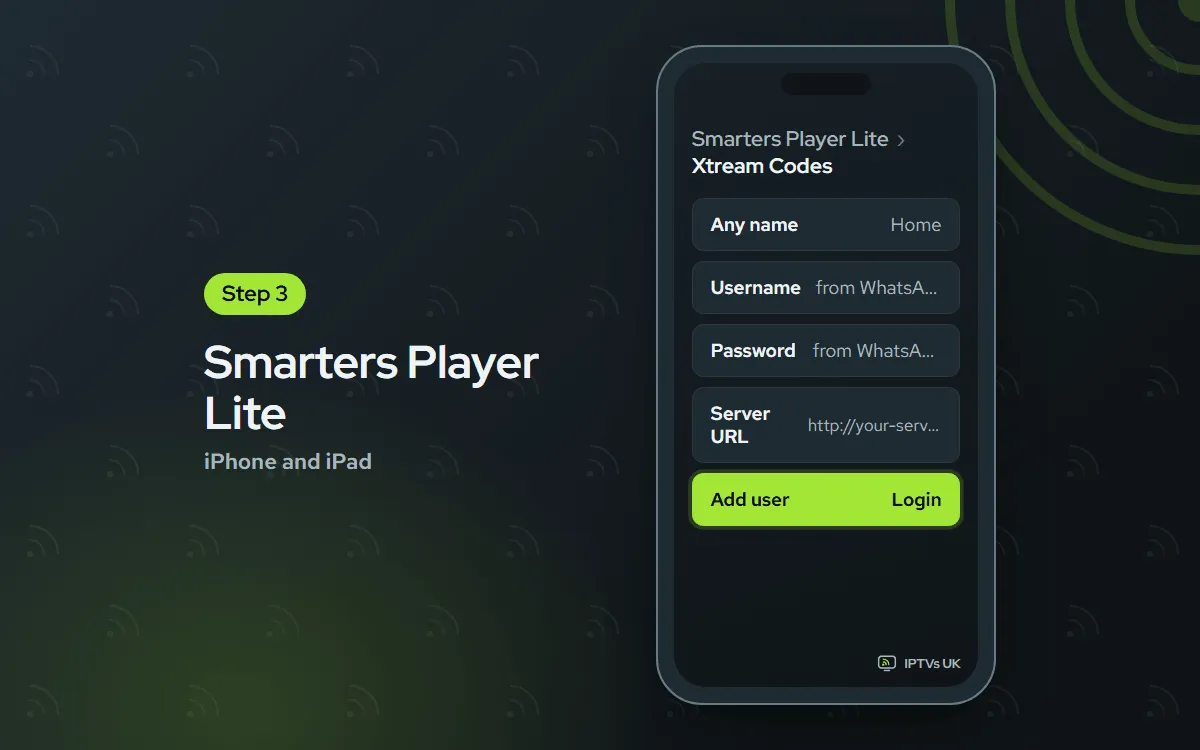
Give the profile any name you like. Copy the username, password and server URL out of our WhatsApp message into the matching boxes, then tap Add user. Allow about a minute for the channels to arrive.
UHF Free app, you sign in
You paste the Xtream Codes login or the M3U link yourself. Free, with an optional Pro plan you pay to its developer
-
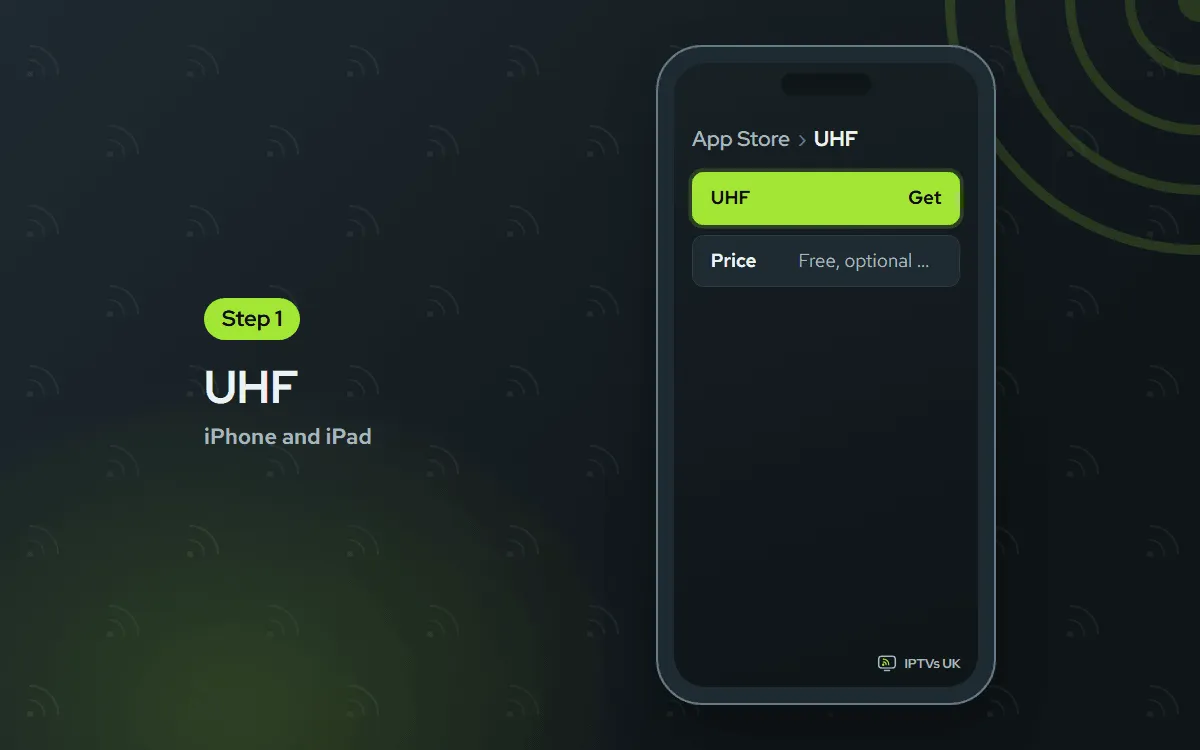
Install UHF
Use UHF on the App Store, or search the store for UHF, and tap Get.
-
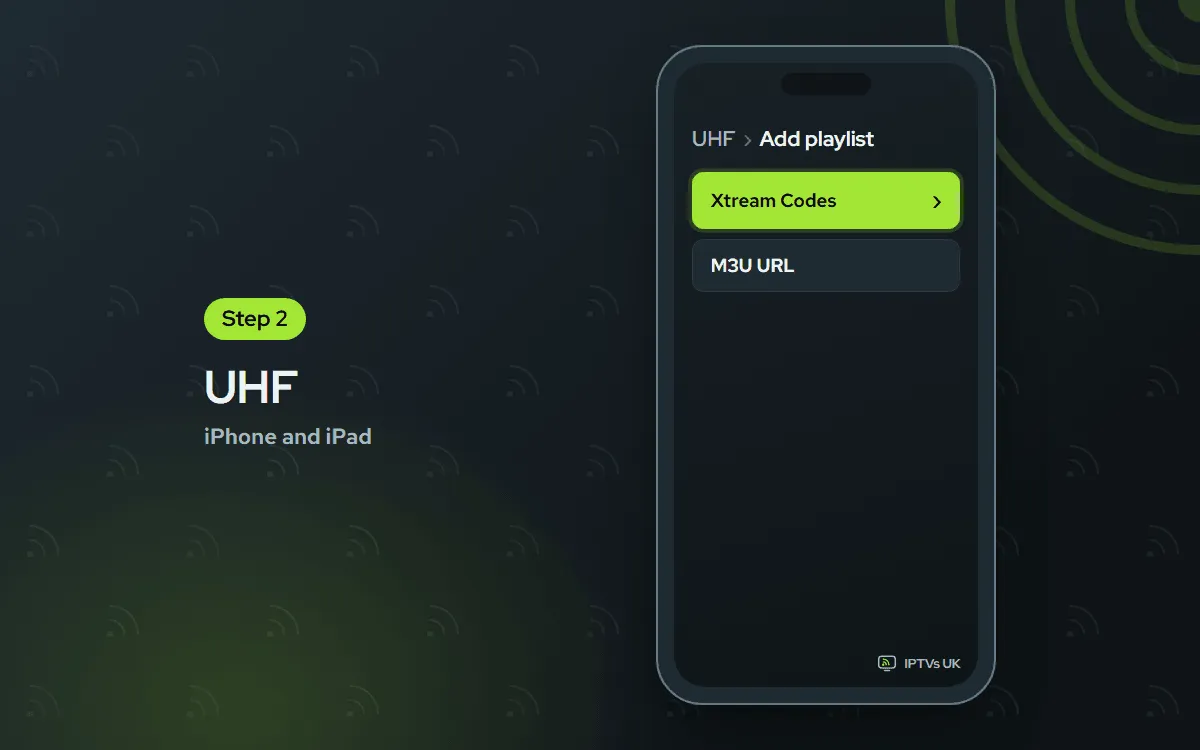
Tap Add playlist
Open UHF and tap Add playlist. Choose Xtream Codes. If you would rather use one single link, M3U works as well.
-
Fill in the login and save
Fill the three boxes (server URL, username, password) from our WhatsApp message. Tap Save, then wait a moment while the channels and the TV guide come in.

What to have ready first
Sort these out before you open the App Store.
- The device itself. An iPhone or iPad with its latest update, signed in to the App Store.
- A stable network. Home Wi-Fi is the better bet. For 4K, aim for 25 Mbps or more.
- Your login. Our WhatsApp message gives you four items: a server URL, a username, a password and an M3U link. Not ordered yet? Compare the plans; the login reaches you on WhatsApp within minutes.
- Ten spare minutes. That covers the download and the first sign-in.
You only do this once. The setup guides for every other screen follow the same pattern.
Which app suits an iPhone or iPad?
IBO Player is the gentlest start, because you skip typing a fiddly password with your thumbs. You send us one screenshot and we handle the rest. Want an app that costs nothing? Smarters Player Lite and UHF are free to download. You paste the login once and they remember it.
| App | How it signs in | App cost |
|---|---|---|
| IBO Player | You send a screenshot, we switch it on | 7 days free, then a yearly or lifetime licence for each device |
| ELK Player | You send a screenshot, we switch it on | 14 days free, then a single fee for each device |
| Smarters Player Lite | You paste the Xtream Codes login | Free |
| UHF | You paste the Xtream Codes login or M3U link | Free, optional Pro plan |
Any app fee is paid to the developer who makes that app. We never receive it, so we cannot refund it. Your plan itself is prepaid: Billed once, no auto-renewal.
Send the picture to your TV with AirPlay
An iPhone or iPad can pass the stream to an Apple TV, or to a smart TV that supports AirPlay. Play something first. If the player shows an AirPlay icon, tap it. If it does not, swipe down to Control Center, tap Screen Mirroring, then select your TV. The phone and the TV must sit on the same home network.
AirPlay leans on your home Wi-Fi, and your phone must stay awake, so for nightly viewing a player on the TV itself is calmer. Our Apple TV guide uses these four apps on tvOS. TVs with their own app store are covered in the Samsung and LG guide.
Troubleshooting IPTV on iPhone and iPad
The app does not show up in the App Store
Type the full app name. In the store, IPTV Smarters goes by Smarters Player Lite. Some apps are hidden in certain regions; to see which store you use, open Settings, tap your name, then Media and Purchases. The links inside each app tab go straight to the right listing.
The login is refused
Refusals almost always come down to an extra space or a single mistyped letter. Copy the three parts one at a time from our WhatsApp chat, pasting each into the field that matches it. The server URL should begin with http. If our message includes a port number (the digits after the colon), keep it.
The picture freezes or keeps buffering
Sit nearer the router. In Settings, open Wi-Fi, tap your network and switch Low Data Mode off. Pick FHD rather than 4K inside the player. Away from Wi-Fi, iOS and your mobile network may limit video.
There is no sound when the phone is on silent
Some players go quiet when the Ring and Silent switch is set to silent, or when the Action button has put a newer iPhone into silent mode. Switch silent off, then turn the volume up using the buttons on the side or the slider in Control Center. Check Bluetooth headphones are not still connected.
The channel list stays empty
Pull down on the list to refresh it, then swipe the app off the app switcher and start it again. A slow line can need a minute for the first load. If nothing appears after that, double-check the login, or WhatsApp us a picture of the screen.
IBO Player is stuck on the code screen
That screen means the app is waiting for activation. Message us the Device ID and Key screenshot. As soon as we confirm, quit IBO Player and launch it again. Activation normally takes minutes, and the channels arrive on the next start.
One plan, more screens
Plans cover 1, 2 or 3 devices at once; see our plans page. Anyone at home on Android can follow the Android phone guide.
Help from us
Send a screenshot of whatever is on your screen to us on WhatsApp, or write to support@mediaprovider.online. You get Daily support, usually within the hour, in English.
