IPTV on Android phones and tablets
Your Android phone or tablet only needs a player app and the login we send. Choose a player below and you can be watching before the kettle boils.
Short answer
If the handset or tablet runs Android 5.0 or later, it can play your plan. Choose IBO Player or ELK Player and we activate it from one screenshot, or install IPTV Smarters or TiviMate and type in the login from our WhatsApp message. Allow about 5 minutes.
- Works on
- Android 5.0 and later, phone or tablet
- Setup time
- About 5 minutes
- Difficulty
- Easy
- Apps in this guide
- IBO Player, ELK Player, TiviMate and IPTV Smarters
- You need
- The login we send on WhatsApp
No login yet? Compare the plans first. Unsure your connection copes with 4K? Run the IPTV speed test on the same network.
Install a player and sign in
Pick a tab. With the first two apps we handle the activation; with the last two you type the login yourself.
IBO Player Paid app, we activate it
You screenshot the Device ID and Key for us. 7 days free, then a yearly or lifetime licence for each device, paid to the app's developer
-
Get IBO Player
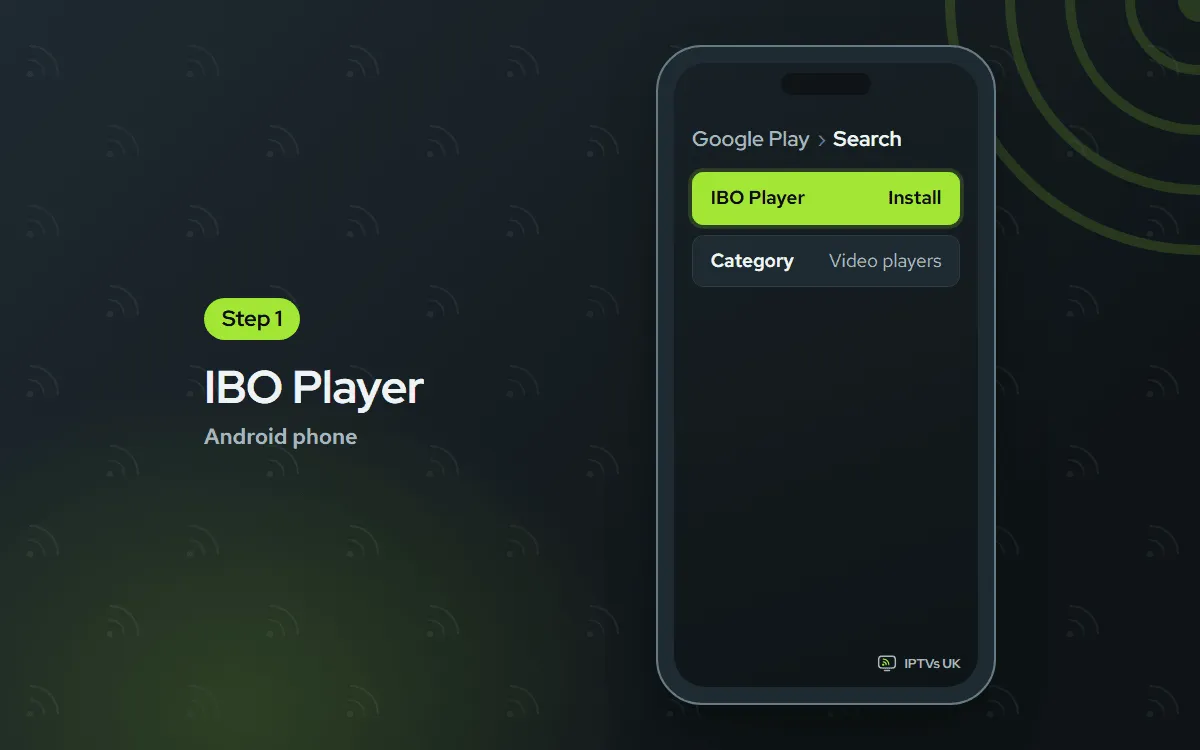
Look for IBO Player in Google Play. When the store search comes up empty, download the Android APK from the official IBO Player downloads page. Similar names exist, so choose the listing that leads to iboplayer.com.
-
Screenshot the Device ID and Key
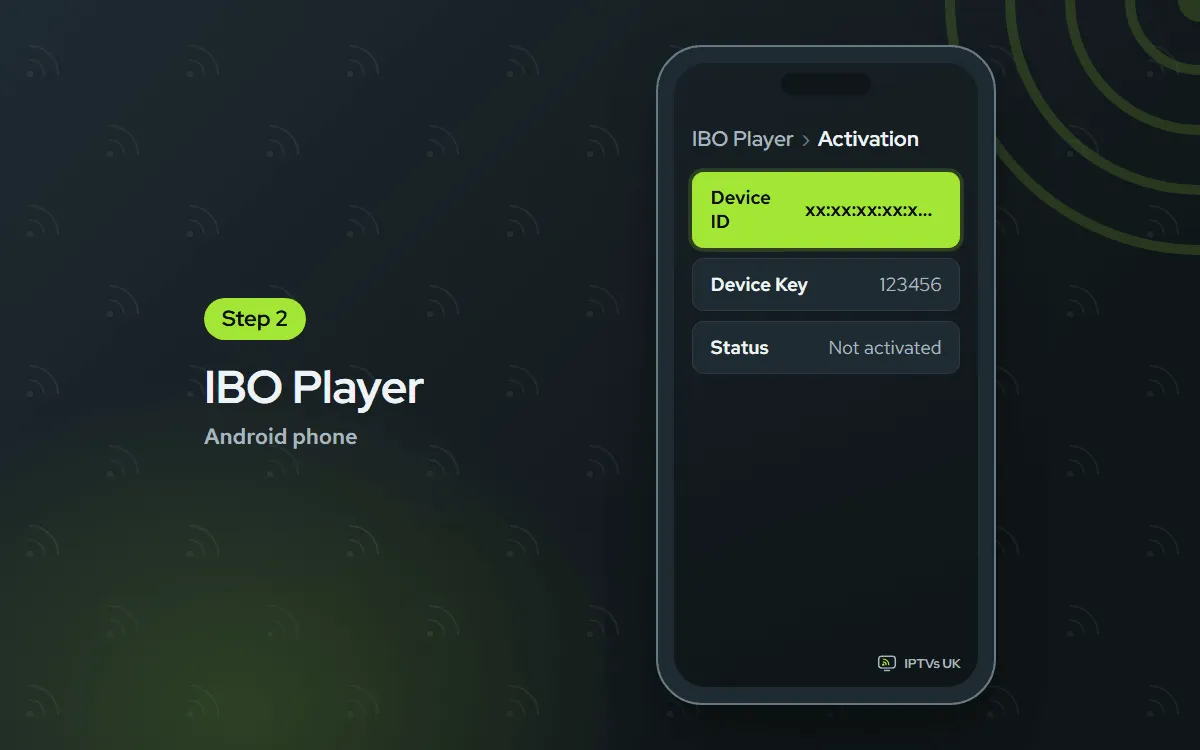
Start the app. A Device ID and a Key fill the opening screen. Save a screenshot of it, as that picture is what we need.
-
Send the picture on WhatsApp
Post the screenshot in our WhatsApp chat with the words IBO Player. Our reply, normally within minutes, tells you the app is now active on your plan.

-
Restart the app and watch
Swipe IBO Player away in recent apps, then launch it again. The channels load. If the list is still blank, wait one minute and restart it.

ELK Player Paid app, we activate it
You screenshot the Device ID and Key for us. 14 days free, then a one-time fee for each device, paid to the app's developer
-
Install ELK Player from Google Play
Search Google Play for ELK Player and tap Install.

-
Save the Device ID and Key
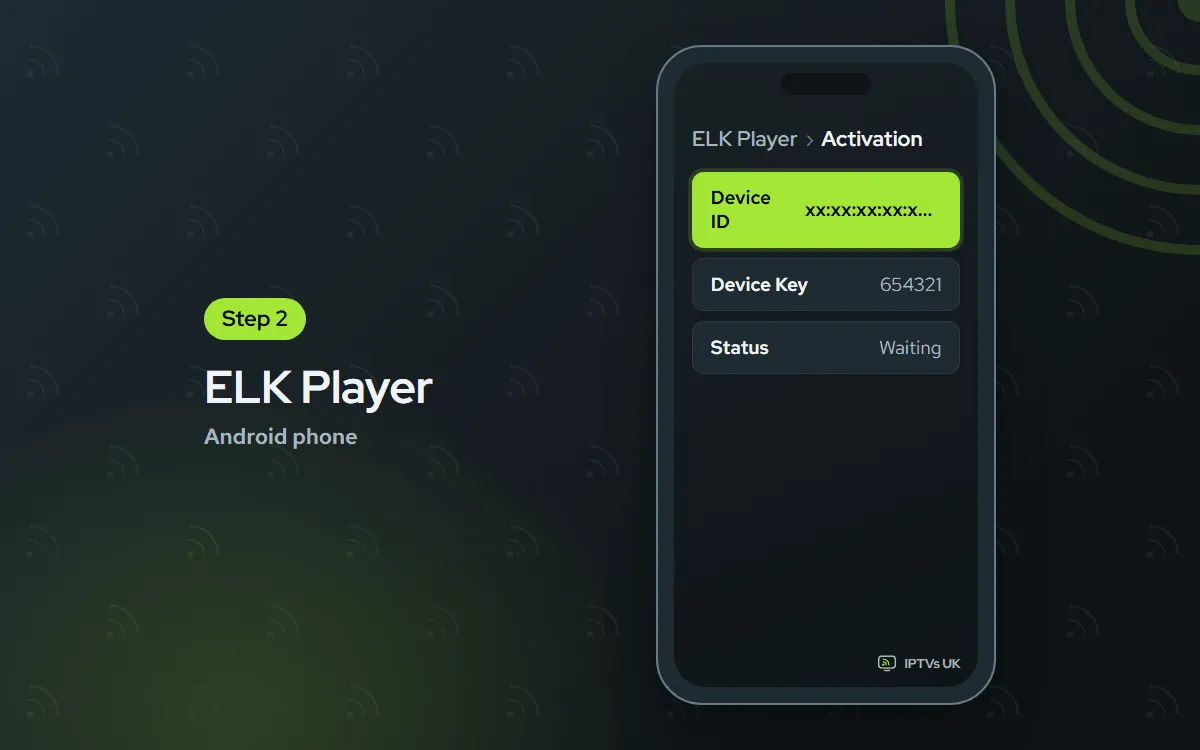
Launch ELK Player and screenshot its first screen, where the Device ID and Key appear.
-
Send it to us on WhatsApp
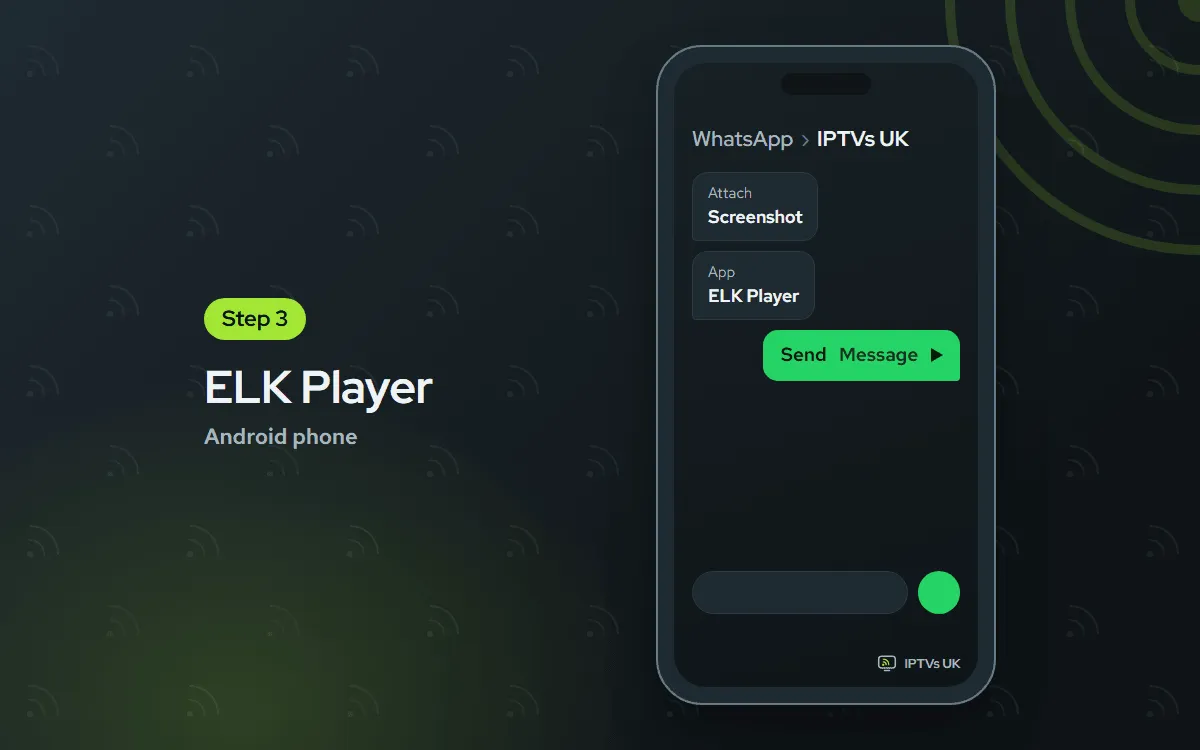
Share the screenshot with us on WhatsApp and name the app. Once it is switched on for your plan, we message you.
-
Reopen ELK Player
Close ELK Player fully, start it again and choose a channel.

TiviMate Free app, you sign in
You type the Xtream Codes login yourself. Its layout targets TVs and remotes; on a phone, IPTV Smarters often feels simpler. Free to use; an optional Premium upgrade is sold by its developer
-
Install TiviMate from Google Play
Find TiviMate in the Play Store and press Install.

-
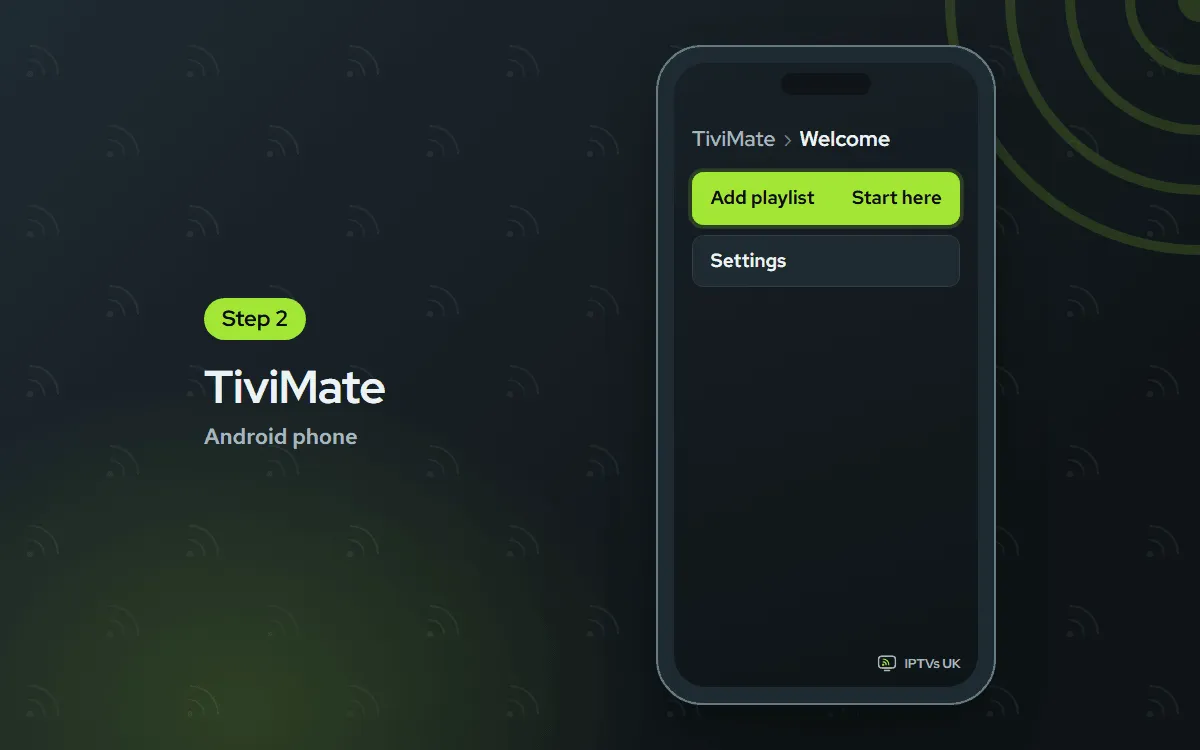
Tap Add playlist
On the welcome screen of the app, tap Add playlist. Holding the phone in landscape gives the guide more space.
-
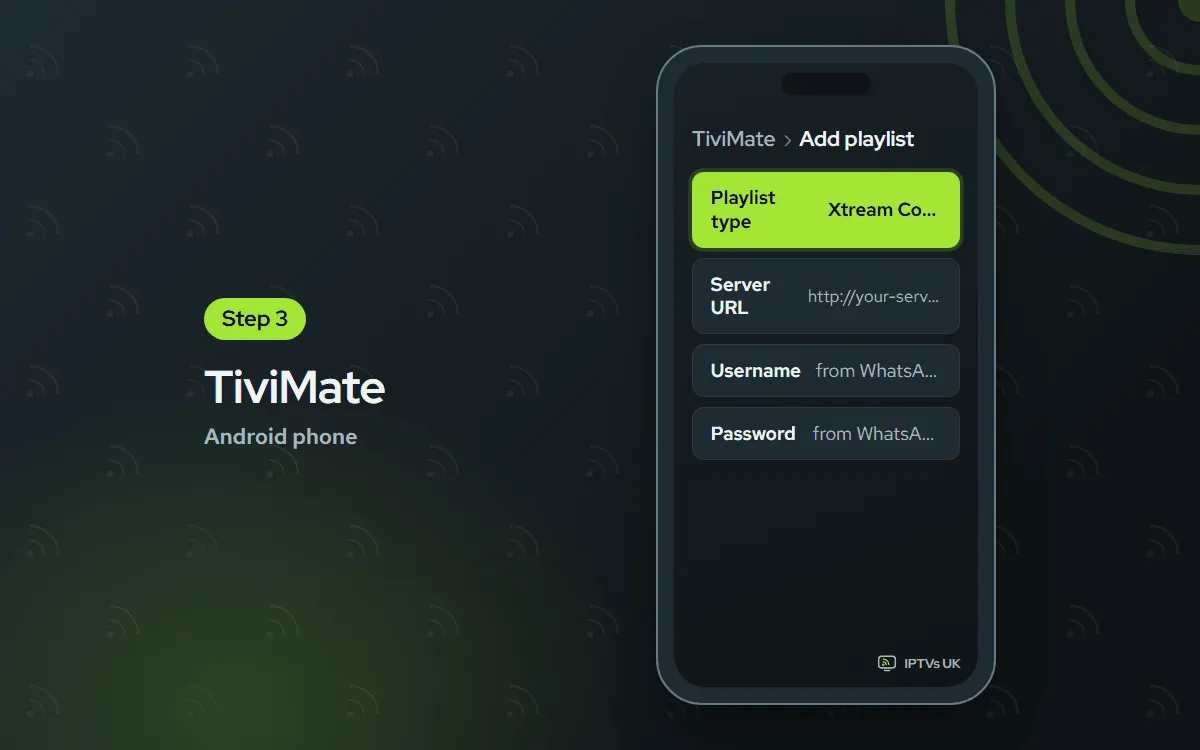
Choose Xtream Codes and fill in the login
Select Xtream Codes. Copy the server URL into its box, then the username and password into theirs, all taken from the login we sent on WhatsApp. The M3U option works as well if you prefer one link.
-
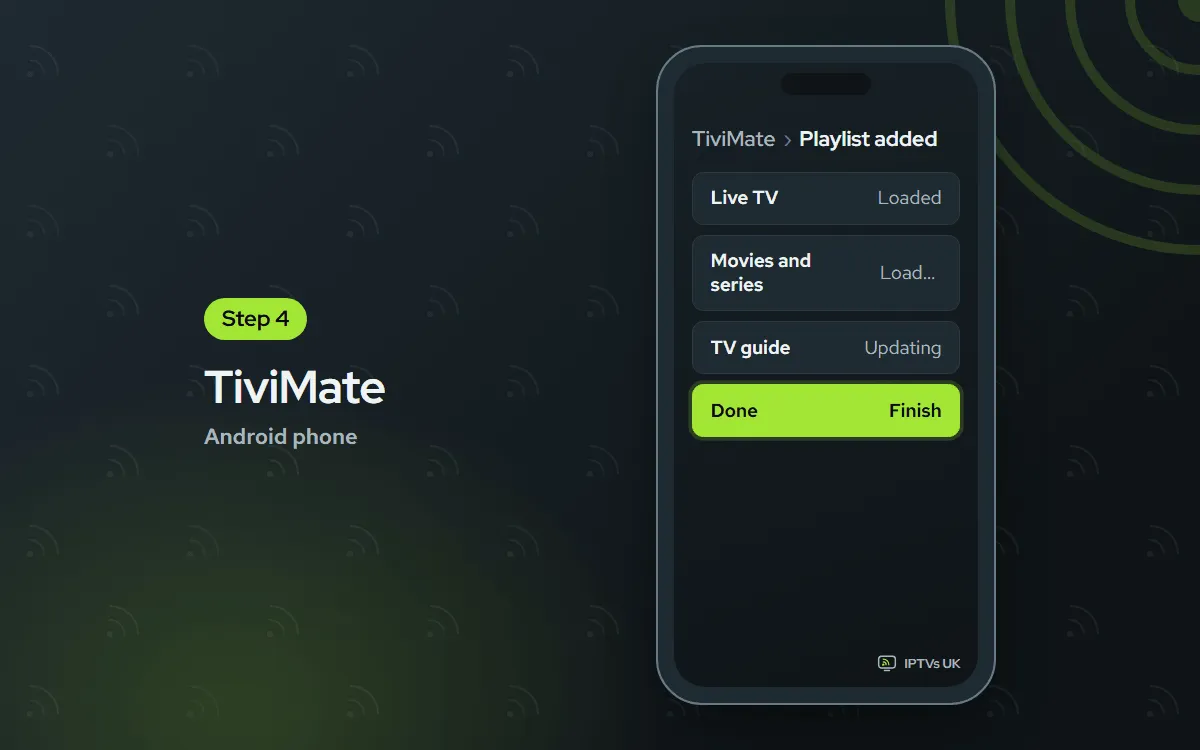
Finish and wait for the guide
Tap Next, then Done. Channels appear straight away; give the programme guide another minute to load.
IPTV Smarters Free app, you sign in
You type the Xtream Codes login yourself. Free, installed from the developer's official APK
-
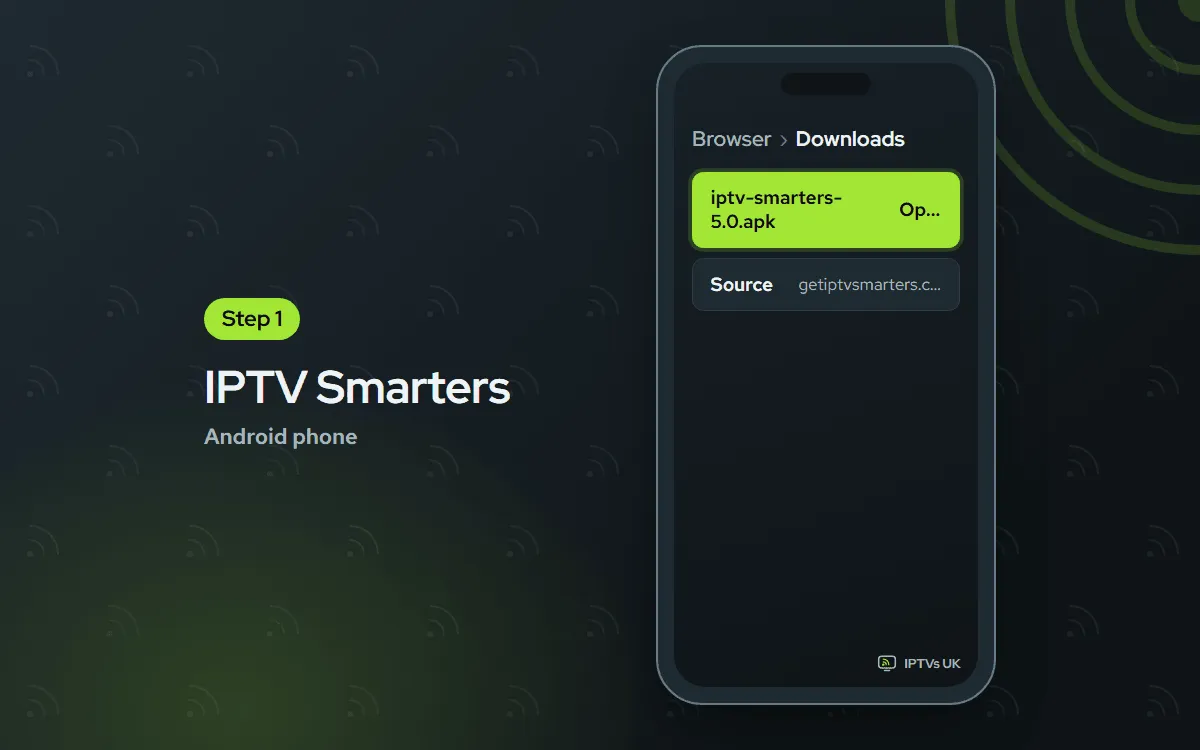
Download the official APK
On the phone, open the official IPTV Smarters APK in your browser. The file comes straight from the developer.
-
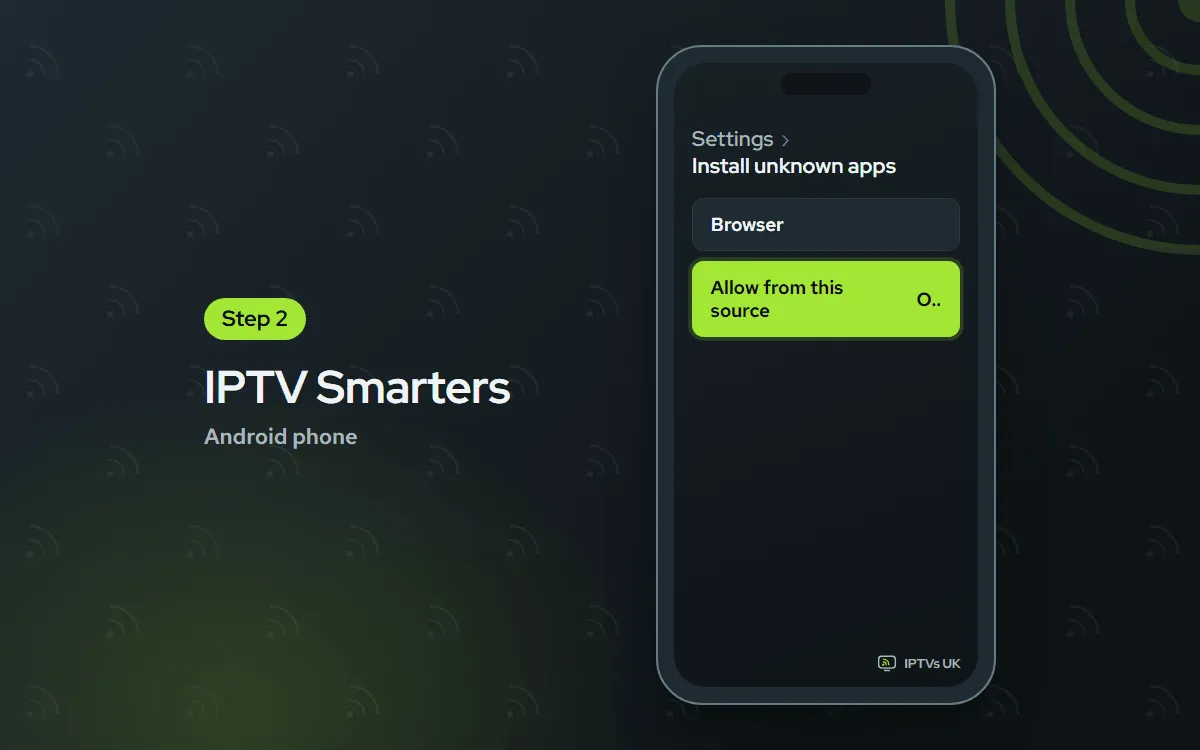
Allow this one install
Tap the downloaded file. If Android asks, let your browser install apps for this file only, then tap Install.
-
Sign in with Xtream Codes API
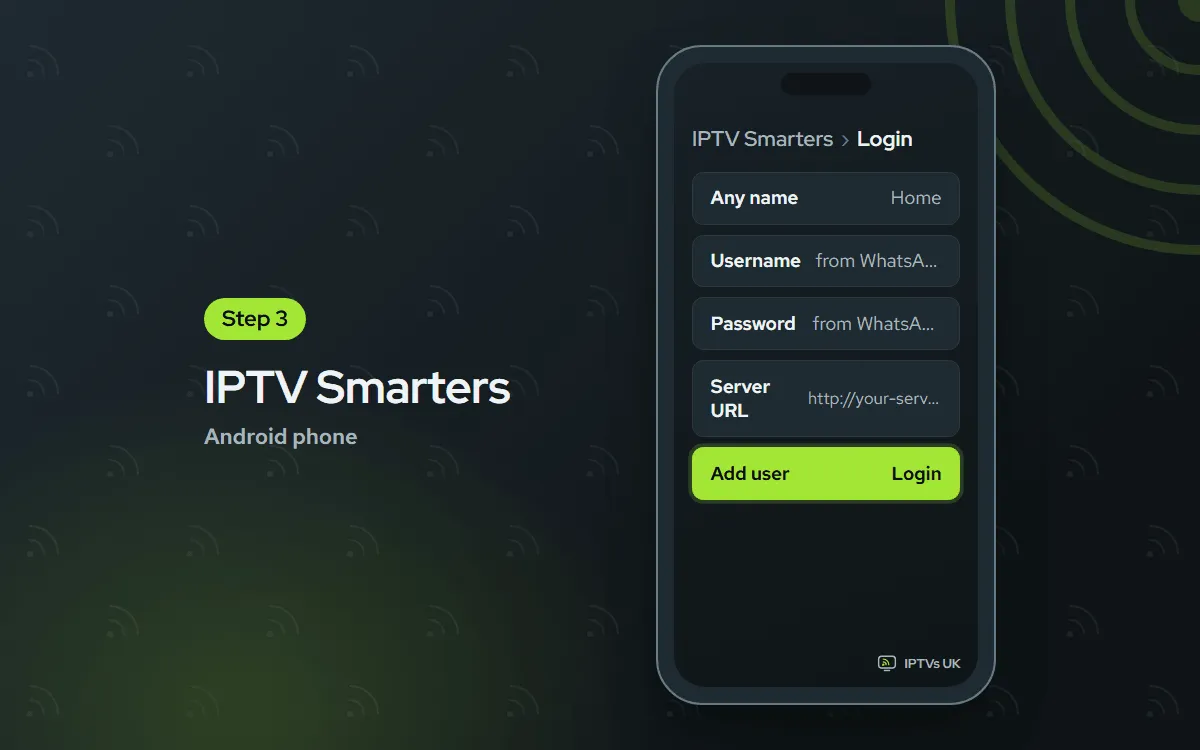
Open IPTV Smarters and choose Login with Xtream Codes API. Type a name of your choice, copy in the three login details we sent (server URL, username, password) and press Add user.
Before you start
Two minutes of preparation now spares you trouble later.
- Your phone or tablet, charged and on Android 5.0 or newer.
- Wi-Fi where you can. A home network holds steadier than mobile signal. For 4K, plan on 25 Mbps or more.
- The login from our WhatsApp message: a server address (URL), your username and password, and also an M3U link. Still choosing? See the plans; your login arrives on WhatsApp within minutes of ordering.
- About 10 minutes, download included.
You only sign in once; after that, tapping the app icon is enough. Other screens in the house? Each has its own page in our setup guides.
The right IPTV app for an Android phone
On a small screen, IPTV Smarters tends to be the easiest: one sign-in screen and buttons sized for a thumb. TiviMate is lovely on a tablet, though its menus were designed around a remote. IBO Player and ELK Player suit anyone who would rather not type at all, since we activate them for you.
| App | How it signs in | App cost |
|---|---|---|
| IBO Player | Screenshot to us, we activate it | 7 days free, then a yearly or lifetime licence for each device |
| ELK Player | Screenshot to us, we activate it | 14 days free, then a single fee for each device |
| TiviMate | You type the Xtream Codes login | Free; optional Premium sold by its developer |
| IPTV Smarters | You type the Xtream Codes login | Free |
Your login works in every one of them, so swapping later is painless. Fees for IBO Player and ELK Player go to their developers, and we do not refund them.
Put the picture on your TV
A phone can hand the stream to a bigger screen. Own a Chromecast, or a TV that has one inside? Play a channel, then press the cast symbol shown by the player. Choose the TV: the picture jumps across and your phone becomes the remote. Phone and TV must sit on one Wi-Fi network.
No cast icon in your player? Pull down Quick Settings and use the Cast tile, which mirrors the whole screen. For everyday viewing, though, an app on the TV is steadier. The Android TV guide covers TV sets and boxes, and the Google TV guide covers Chromecast with Google TV.
Troubleshooting IPTV on an Android phone
Find the line that matches your problem and start there.
The APK refuses to install
Android blocks downloads from a browser until you say yes once. When the prompt shows, open Settings, give your browser the right to add unknown apps, return to the file and press Install. Turn that permission off again afterwards.
The app shuts as soon as it opens
Restart the phone after updating two things in Google Play: Android System WebView and the player itself. Current players can be too heavy for very old handsets, so check the phone runs at least Android 5.0. Still closing? Go to Settings, Apps, pick the player and wipe its cache.
The picture stutters on mobile data
Mobile signal changes with where you are, the hour and the bars on screen. Join a Wi-Fi network if one is nearby, or step the picture down to FHD or HD. It also helps to exempt the player from Data Saver.
The login is not accepted
One stray space or a mistyped letter is almost always the culprit. Paste each part of the login (server URL, then username, then password) from our WhatsApp message into its own box. The URL begins with http, and any port number in our message has to stay.
Some channels have no sound
While the channel plays, open the audio menu and try a different audio track. If that fails, open the player settings and swap the decoder from hardware to software, or back. A forgotten Bluetooth headset can also steal the sound.
The battery runs down fast
Streaming works the display, the chip and the wireless radio hard, so some drain is normal. Dim the display, shut background apps and stay on Wi-Fi where possible, since mobile data costs more power. Battery saver can reduce picture quality, and a tablet can simply stay plugged in.
Ask us
Send us a WhatsApp with a screenshot of the problem, or email support@mediaprovider.online. We give Daily support, usually within the hour.
