Can IPTV work on Roku? Yes, by casting from your phone
A Roku cannot run the usual IPTV players, but it can show what your phone plays. Two methods below get your channels onto the big screen, one for any phone and one for iPhone.
Short answer
Yes, but not through a normal app install. Roku is a closed platform, so the dependable way is to let your phone play the stream and cast it to the TV with Web Video Caster and its free Roku receiver. On a Roku 4K model, an iPhone can mirror the picture over AirPlay as a second option. Either way takes about 10 minutes.
- Works on
- Roku Express, Streaming Stick and Ultra, plus Roku TVs
- Setup time
- About 10 minutes
- Difficulty
- Medium
- Methods in this guide
- Web Video Caster and AirPlay from an iPhone
- You need
- Your M3U link and a phone on the home Wi-Fi
No login yet? Compare the plans first. Unsure your connection copes with 4K? Run the IPTV speed test on the same network.
Cast or mirror to your Roku
Web Video Caster comes first, as any Roku can use it. AirPlay is the alternative for an iPhone paired with a Roku 4K model.
Web Video Caster Recommended, any model
You paste the M3U link into the phone app. Costs nothing on the phone or the TV side; any paid extras are shown in the store listing
-
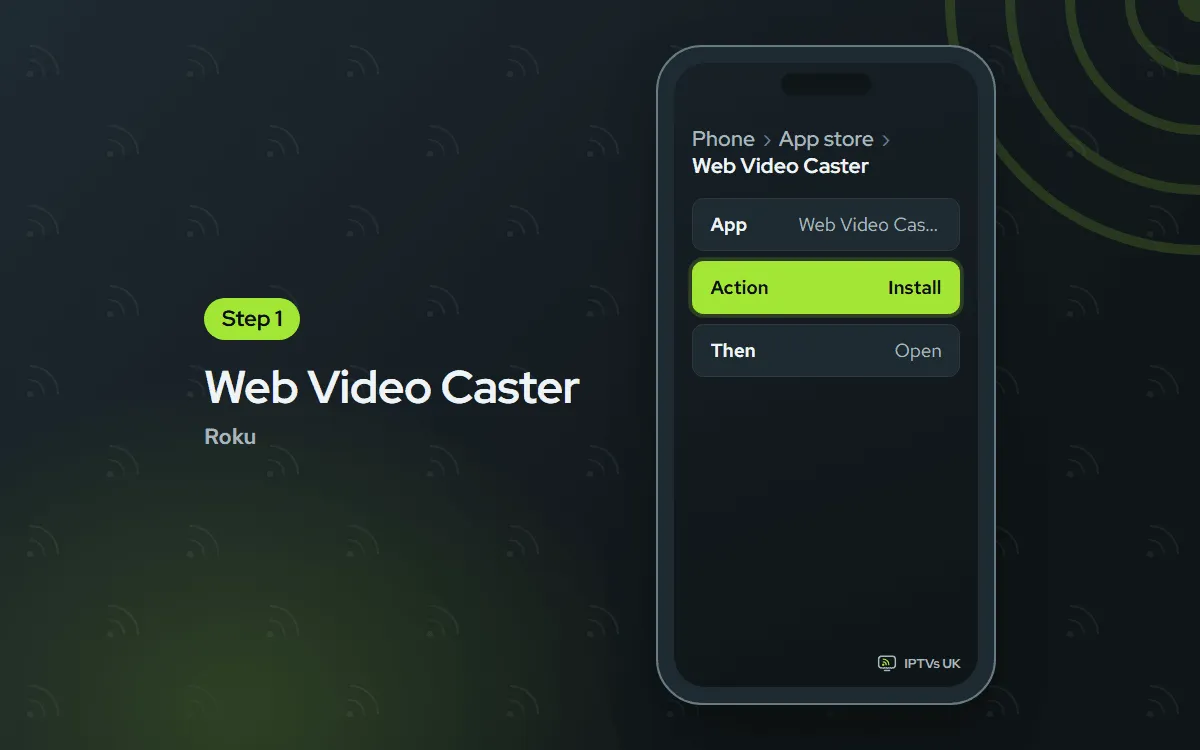
Put Web Video Caster on your phone
Search your phone's app store (App Store on iPhone, Google Play on Android) for Web Video Caster, install it and launch it one time.
-
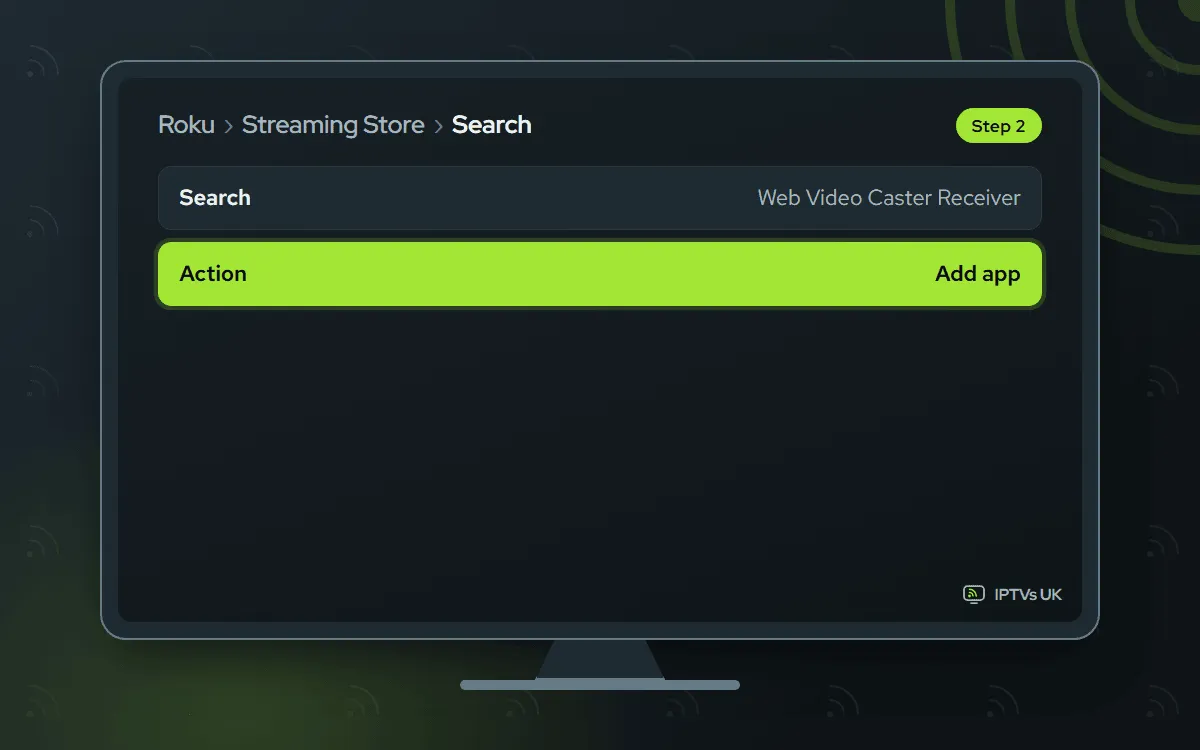
Add the receiver to the Roku
Using the Roku remote, open the Streaming Store, look up Web Video Caster Receiver and choose Add app.
-
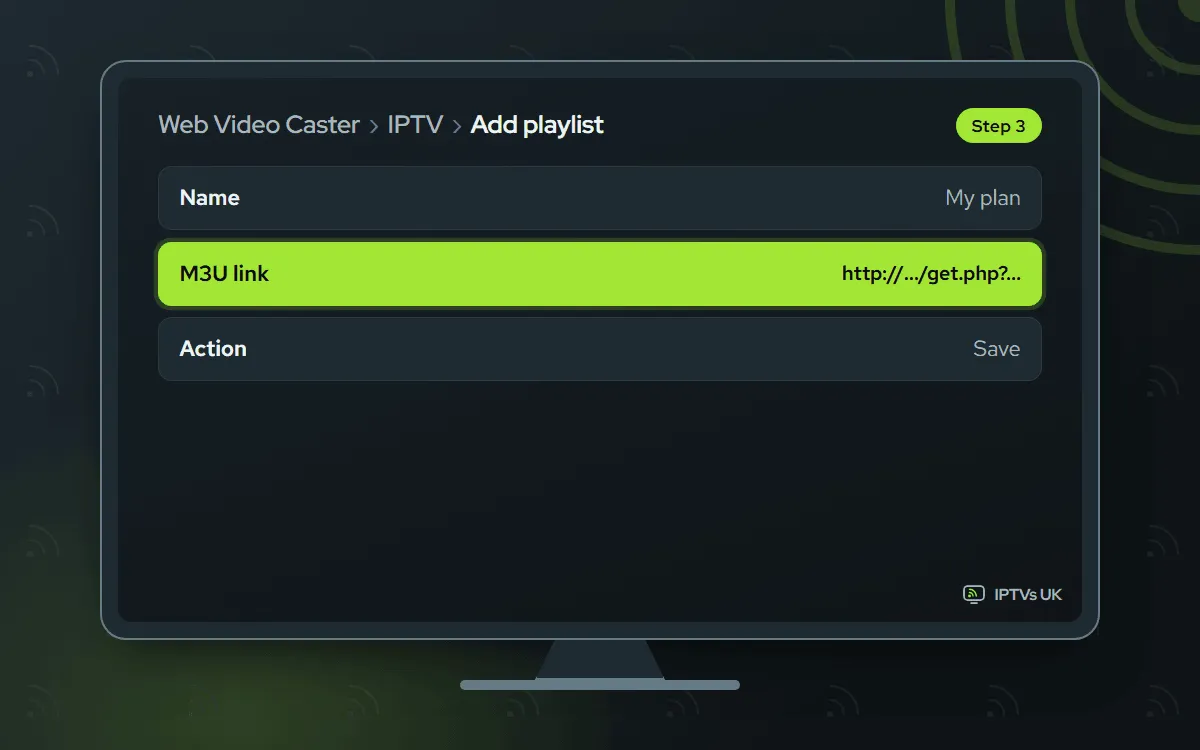
Paste the M3U link in the phone app
Back on the phone, open the app menu and tap IPTV, then Add playlist. Paste in the M3U link from our WhatsApp message.
-
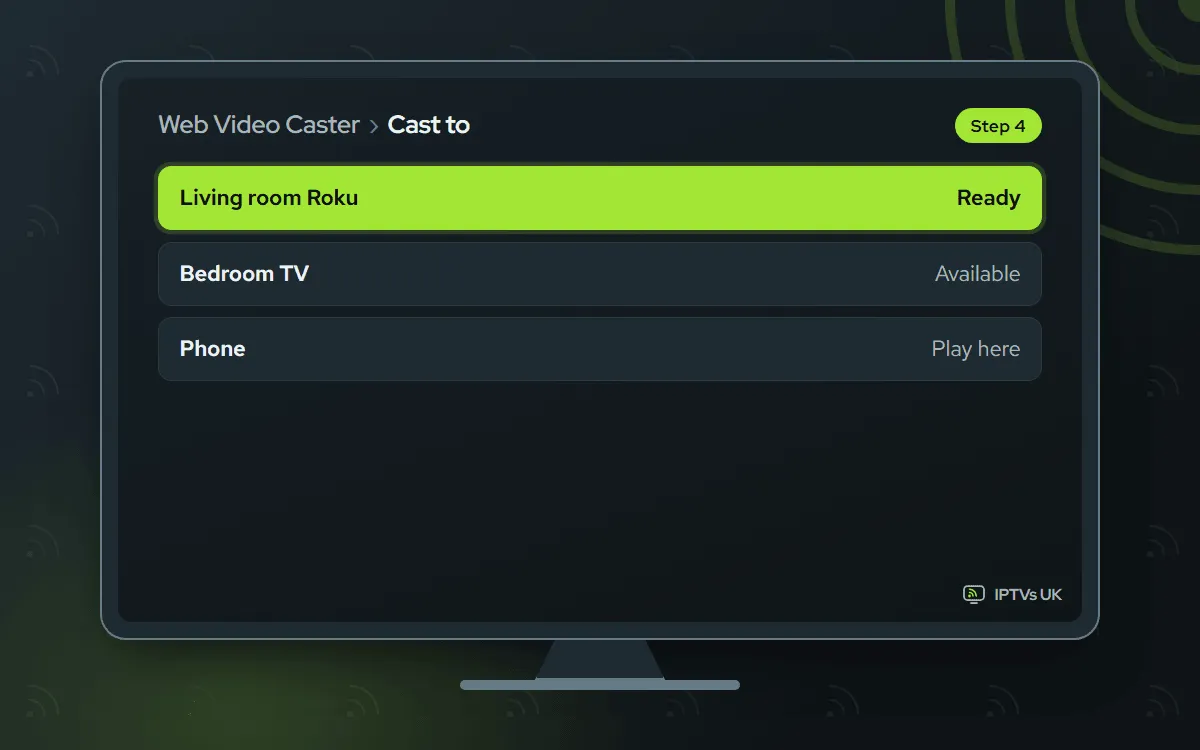
Cast a channel
Tap the cast icon, select your Roku from the list and choose a channel. Do not close the phone app during viewing.
AirPlay from iPhone Roku 4K models only
You sign in to an IPTV app on the iPhone, then mirror it. Comes with iPhones and with Roku 4K models; an IPTV app on the iPhone is also needed
-
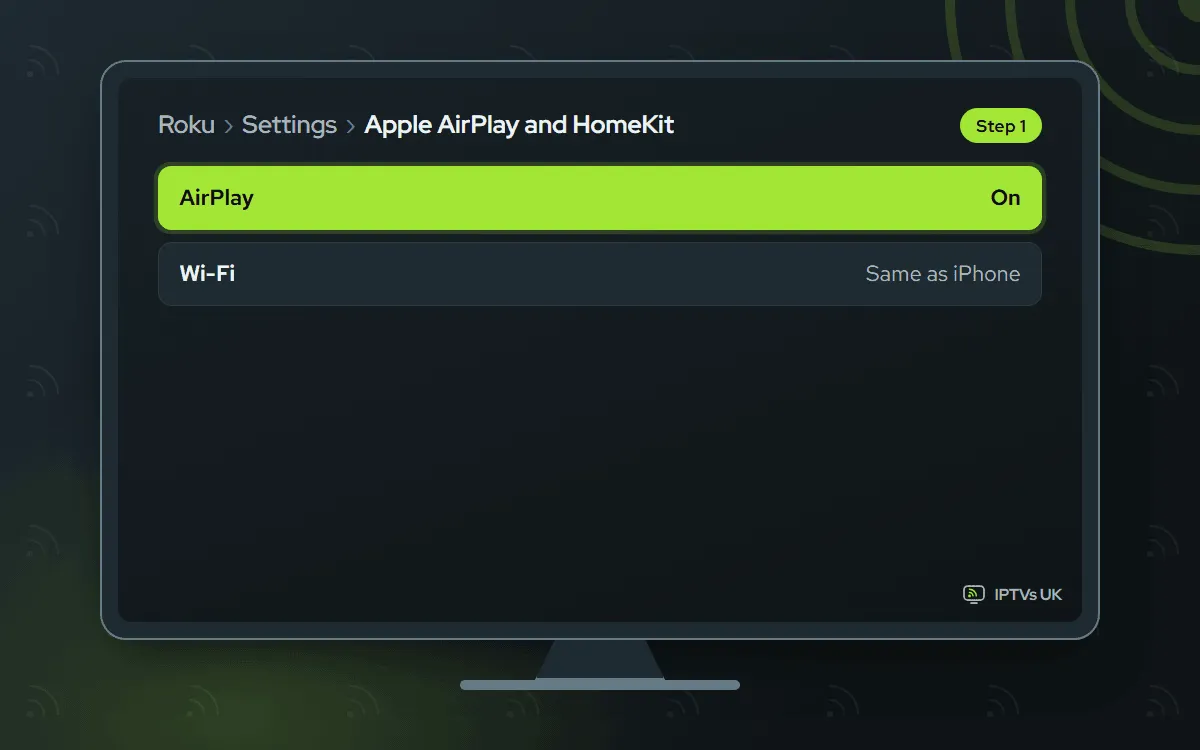
Switch on AirPlay on the Roku
Roku 4K models have the switch under Settings › Apple AirPlay and HomeKit › AirPlay: set it to On. The iPhone and the Roku must share one Wi-Fi network.
-
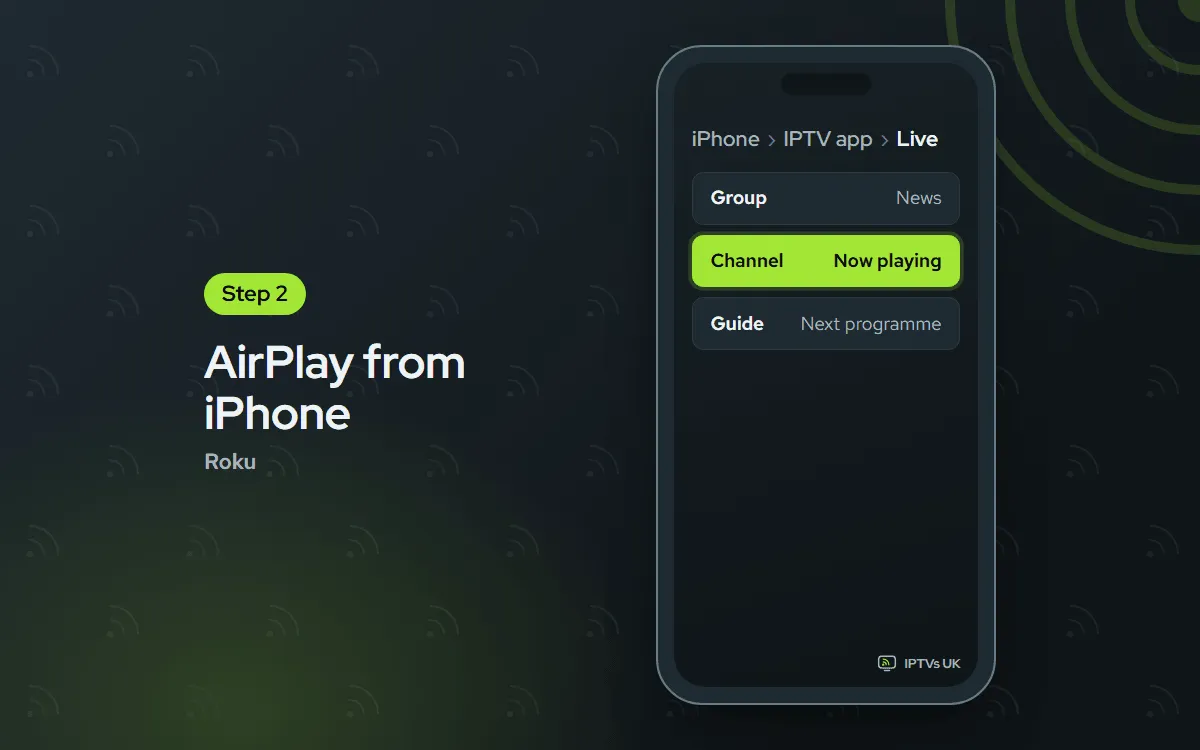
Start a channel on the iPhone
Open an IPTV player on your iPhone, sign in with the login from our message and begin playing a channel. The apps are listed in our iPhone and iPad guide.
-
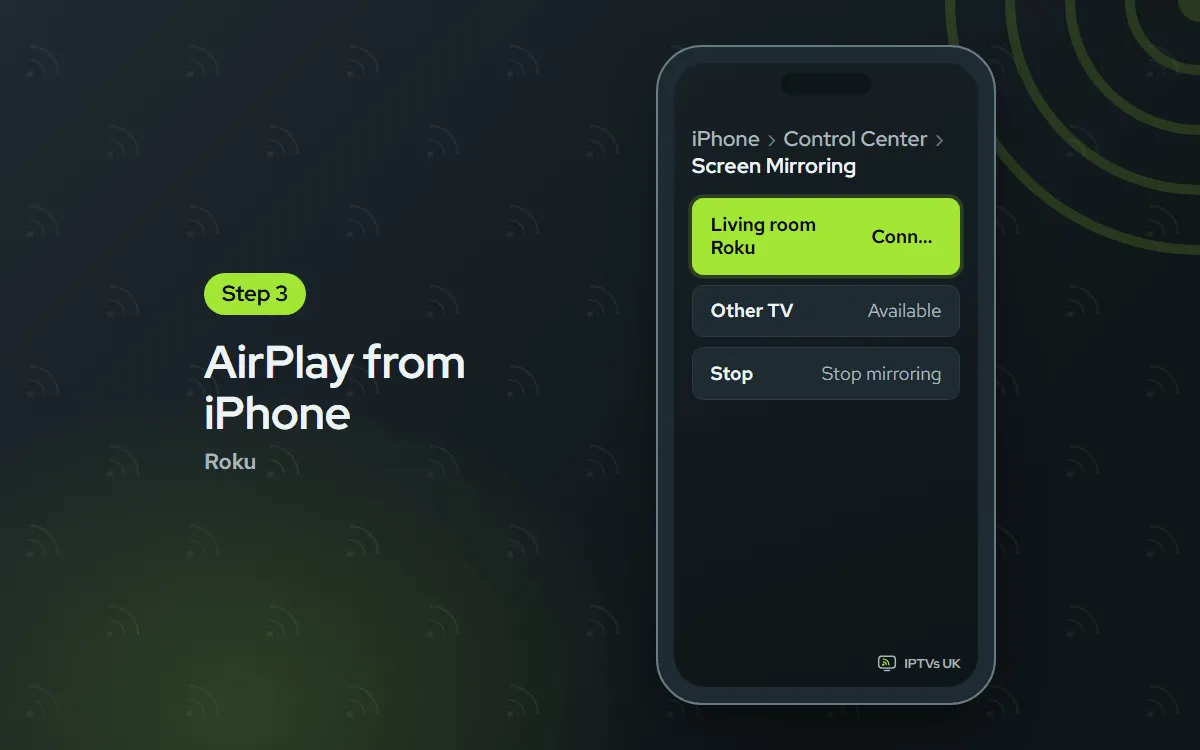
Mirror the screen to the Roku
Swipe down to Control Center, tap Screen Mirroring and pick your Roku. The first time, type in the code the TV displays.
Before you start
Line these up and the setup goes smoothly.
- The Roku, plugged into the TV, with your phone joined to the same Wi-Fi.
- A steady connection. For 4K, allow 25 Mbps or more.
- The login from our WhatsApp message, including the M3U link. Not ordered yet? See the plans; one plan covers both methods here.
- About 10 minutes.
Once it is done, you just open the phone app and cast.
So, can IPTV work on Roku?
Yes, with one honest caveat. Roku keeps its platform closed: there is no sideloading, and only a handful of Streaming Store players will accept your M3U link or Xtream Codes details. The ones that do turn up rarely last, so naming one here would risk sending you to an app that disappears soon after.
Casting gets around all of that. Your phone handles the stream and the Roku just displays it, on every model and without relying on the store. What you give up is a full on-screen TV guide and recording. If those matter, add a Fire TV Stick in a free HDMI socket and you get the complete set.
Which method should you pick?
Begin with Web Video Caster. It suits every Roku, it is the most dependable option and the store cannot take it away. AirPlay is the pick for iPhone households with a Roku 4K model who already watch on the phone; the iPhone and iPad guide covers the apps.
| Method | Works on | You need |
|---|---|---|
| Web Video Caster | Every Roku model | Any phone, the free receiver, the M3U link |
| AirPlay mirroring | Roku 4K models | An iPhone with an IPTV app signed in |
This guide sticks to casting and mirroring. Players in the Streaming Store change so often that we cannot keep a fair list.
Make casting work every time
A few habits clear up most casting trouble.
- Rename the Roku in Settings to something you will spot instantly when casting.
- Put phone and Roku on one Wi-Fi band, ideally 5 GHz.
- Install receiver updates whenever the Roku offers one.
- Exempt Web Video Caster from the phone’s battery saver.
- A stick that restarts at random often needs more power: use a mains plug, not a USB port on the TV.
Troubleshooting
Pick the symptom you are seeing.
The Roku is missing from the cast list
Both devices need the same Wi-Fi network, and many routers also expect the same band. Check that the receiver app is on the Roku, and launch it one time. Then press the cast button again. Restarting the phone and the Roku solves most cases.
Locking the phone stops the stream
When you cast, the phone app is in charge of playback. Leave it open, and in the phone settings lift any battery or background restrictions on it. A phone on charge is also less likely to shut apps down.
The video stutters or freezes
With casting, the video crosses your Wi-Fi twice, so any weak spot shows up fast. Bring the router and the Roku closer, move to 5 GHz and choose the channel in a lower quality. A Roku TV with an Ethernet socket gains the most from a cable.
AirPlay does not appear
You need a Roku 4K model on recent software. Run Settings, System, System update first. After that, confirm that Settings › Apple AirPlay and HomeKit › AirPlay says On. Then power-cycle both devices and have another go.
The M3U link will not load
Copy the link afresh from our message and paste the whole thing, with nothing after the last character. An error that will not go away? WhatsApp us a screenshot and we will test it.
There is no TV guide on screen
Casting carries the picture only; the schedule never leaves your phone. That is a Roku limit, not a plan limit. A full on-screen guide needs a proper player app on a different device.
When a Fire TV Stick makes more sense
For daily viewing, a cheap streaming stick in a second HDMI socket is worth the outlay. It brings a remote-friendly player, a full on-screen guide and favourites, and your phone stays free. Casting is a good first step, and many homes keep both.
Setting one up with our Fire TV Stick guide is roughly a ten-minute job. Own a Samsung or LG set with an app store? The smart TV guide may save you buying anything. All the other devices are in the setup hub.
Ask us
WhatsApp us a screenshot of what you see, or email support@mediaprovider.online. We give Daily support, usually within the hour.
